




Windows Server 2025 Standard:
How to Download, Install & Activate
Complete step-by-step guide to downloading, installing and activating Windows Server 2025 Standard — covering system requirements, ISO download, bootable USB creation for Windows and macOS/Linux, the full installation wizard, and DISM activation. Genuine key — instant delivery across USA & Canada.
Windows Server 2025 Standard is the latest server operating system from Microsoft — developed for the constantly changing requirements of modern IT infrastructures. With greater stability, faster speed, and easy integration with cloud services, it offers a powerful and scalable environment perfect for any business. It delivers Secured-Core Server hardware-rooted security, Azure Arc integration for unified hybrid cloud management, SMB over QUIC for secure remote file access, TLS 1.3 by default, and improved performance and containerisation — all with virtualisation rights for up to 2 virtual machines per licence.
🔐 Secured-Core Server
Advanced hardware-rooted security using TPM 2.0, UEFI Secure Boot, Virtualisation-Based Security (VBS), and Hypervisor-Protected Code Integrity (HVCI) — defending against firmware attacks and sophisticated boot-level threats from the ground up.
☁ Azure Arc Integration
Manage your on-premises Windows Server 2025 instances directly from the Azure portal using Azure Arc — enabling unified policy enforcement, Microsoft Defender for Cloud, automated updates, Azure Monitor, and hybrid governance at scale.
🌐 SMB over QUIC
Share files securely over the internet without a VPN using SMB over QUIC — the QUIC transport protocol replaces traditional TCP for SMB, delivering low-latency, encrypted file sharing that's ideal for remote and hybrid workers.
🔒 Enhanced Security
TLS 1.3 enabled by default, AES-256 encryption for SMB connections, improved credential protection with Windows Defender Credential Guard, and enhanced auditing capabilities keep your server and data protected to the highest standards.
⚡ Improved Performance
Significant storage and networking improvements including faster TCP connections, improved Storage Spaces performance, enhanced ReFS file system reliability, and better multi-queue NIC support for demanding server workloads.
🐳 Container & VM Support
Improved container support with up to 40% smaller image sizes and faster startup times for Kubernetes workloads. Standard edition includes virtualisation rights for up to 2 Windows Server VMs on the licensed physical host.
| Feature | Standard | Datacenter |
|---|---|---|
| Core OS & all server roles | ✔ | ✔ |
| Secured-Core Server | ✔ | ✔ |
| Azure Arc integration | ✔ | ✔ |
| SMB over QUIC & TLS 1.3 | ✔ | ✔ |
| All standard server roles | ✔ | ✔ |
| Hyper-V & containers | ✔ | ✔ |
| VM virtualisation rights | 2 VMs per licence | Unlimited ★ |
| Storage Spaces Direct (S2D) | ✗ | ✔ ★ |
| Storage Replica (unlimited) | Limited | Unlimited ★ |
| Software-Defined Networking | ✗ | ✔ ★ |
| Shielded VMs | ✗ | ✔ ★ |
| Licence type | Per core · 2 VMs | Per core · Unlimited VMs |
🔑 Don't have a product key yet? Get your genuine Windows Server 2025 Standard key at the best price — instant digital delivery across USA & Canada.
Buy Your Product Key Now →System Requirements for Windows Server 2025 Standard
Before downloading, verify your server hardware meets the minimum specifications below. Exceeding the minimums is strongly recommended for production environments running server roles.
| Component | Minimum Requirement |
|---|---|
| Processor | 64-bit, 1.4 GHz or faster · x64-compatible · NX, DEP, CMPXCHG16b, LAHF/SAHF, PrefetchW instruction support required |
| RAM | 512 MB minimum · 2 GB or more recommended · ECC RAM strongly recommended for production servers |
| Hard Disk | 32 GB minimum · 100 GB+ recommended for typical server workloads · NVMe SSD strongly recommended |
| Network Adapter | Gigabit Ethernet (10/100/1000 BASE-T) or faster |
| Firmware | UEFI 2.3.1c or later with Secure Boot capability (recommended) |
| TPM | TPM 2.0 recommended — required for Secured-Core Server features |
| USB Drive | Minimum 8 GB USB flash drive for bootable installation media |
| DVD (optional) | DVD drive capable of burning dual-layer DVDs · dual-layer 8.5 GB DVD if using disc media |
Download the Windows Server 2025 ISO File
Download the official Windows Server 2025 ISO from Microsoft's Evaluation Center — the official free source for Windows Server installation media:
https://www.microsoft.com/en-us/evalcenter/download-windows-server-2025
Navigate to the URL above and select Windows Server 2025.
Choose your preferred language from the dropdown menu.
Click the Download the ISO link and complete the brief registration form to access the download.
Save the ISO file to a convenient location on your PC. The file is approximately 5 GB — a stable internet connection is recommended for the download.
Create Bootable Installation Media
Before installation, prepare a bootable USB drive using the downloaded ISO. You will need a USB flash drive with at least 8 GB of capacity.
🪟 For Windows Users — Using diskpart
- Insert your USB drive into a Windows PC.
- Open Command Prompt as Administrator (search cmd → right-click → Run as administrator).
- Type
diskpartand press Enter. Then typelist diskto identify your USB drive number. - Type
select disk N(replace N with your USB disk number — verify carefully before proceeding). - Run the following commands in sequence:
clean→create partition primary→select partition 1→active→format fs=fat32 quick→assign→exit - Mount the ISO (right-click → Mount in Windows Explorer) and copy all contents from the mounted drive to your formatted USB drive.
🍎 For macOS / Linux Users — Using the dd command
- Insert your USB drive and open Terminal.
- Identify your USB device:
diskutil list(macOS) orlsblk(Linux). - Unmount the disk on macOS:
diskutil unmountDisk /dev/diskN - Flash the ISO using
dd:
sudo dd if=/path/to/WindowsServer2025.iso of=/dev/disk2 bs=4m status=progress
sudo dd if=/path/to/WindowsServer2025.iso of=/dev/sdb bs=4M status=progress && sync
dd command and diskpart formatting erase all existing data on the USB drive. Double-check the correct device is selected before proceeding.Install Windows Server 2025 Standard
Boot from USB:
Insert the bootable USB drive into the target server or PC and restart the system.
Access the boot menu during startup — typically by pressing F12, F10, or Esc (consult your server or motherboard documentation).
Select the USB drive as the primary boot device.
Installation Steps:
Language and Region Settings: Choose your preferred language, time zone, and keyboard layout. Click Next.
Install Now: Click "Next" then "Install Now" to begin the installation process.
Product Key: Enter your Windows Server 2025 Standard product key from MMKeys, or click "I don't have a product key" to activate after installation.
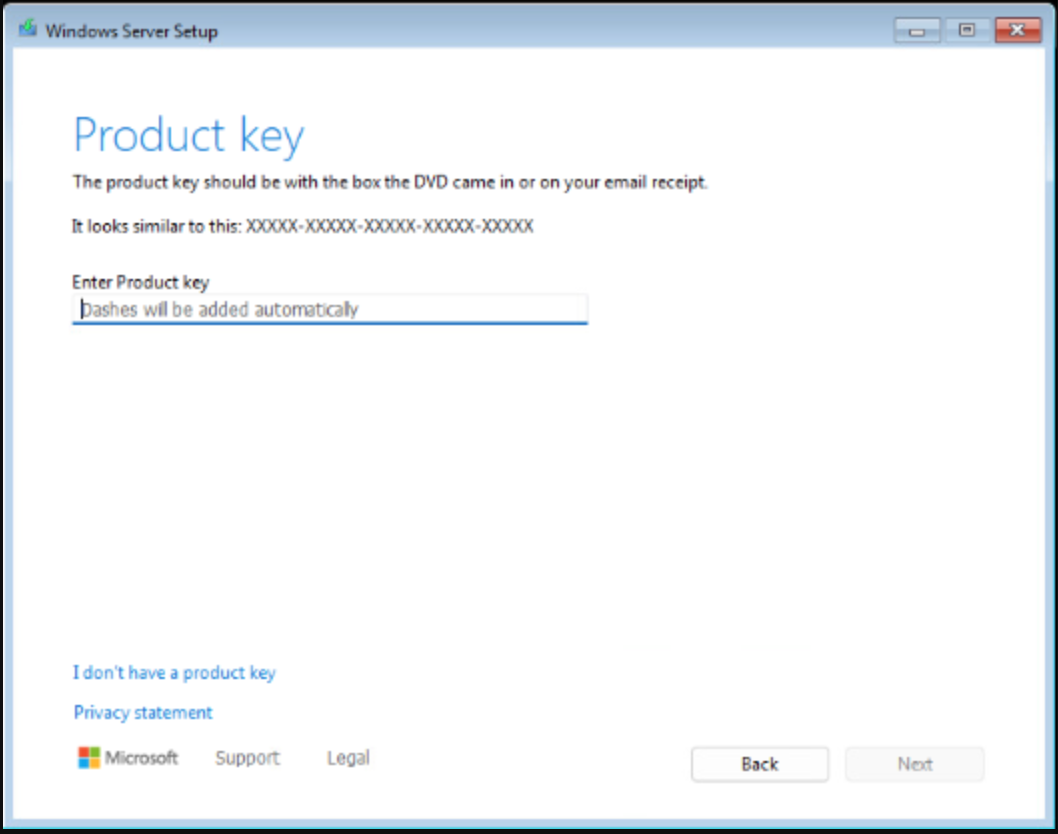
↑ Enter your genuine Windows Server 2025 Standard product key from MMKeys, or skip to enter it during post-installation activation.
Select Edition: Choose "Windows Server 2025 Standard (Desktop Experience)" for a full GUI installation — recommended for most deployments. Select the Core option only if you specifically require a minimal headless server.
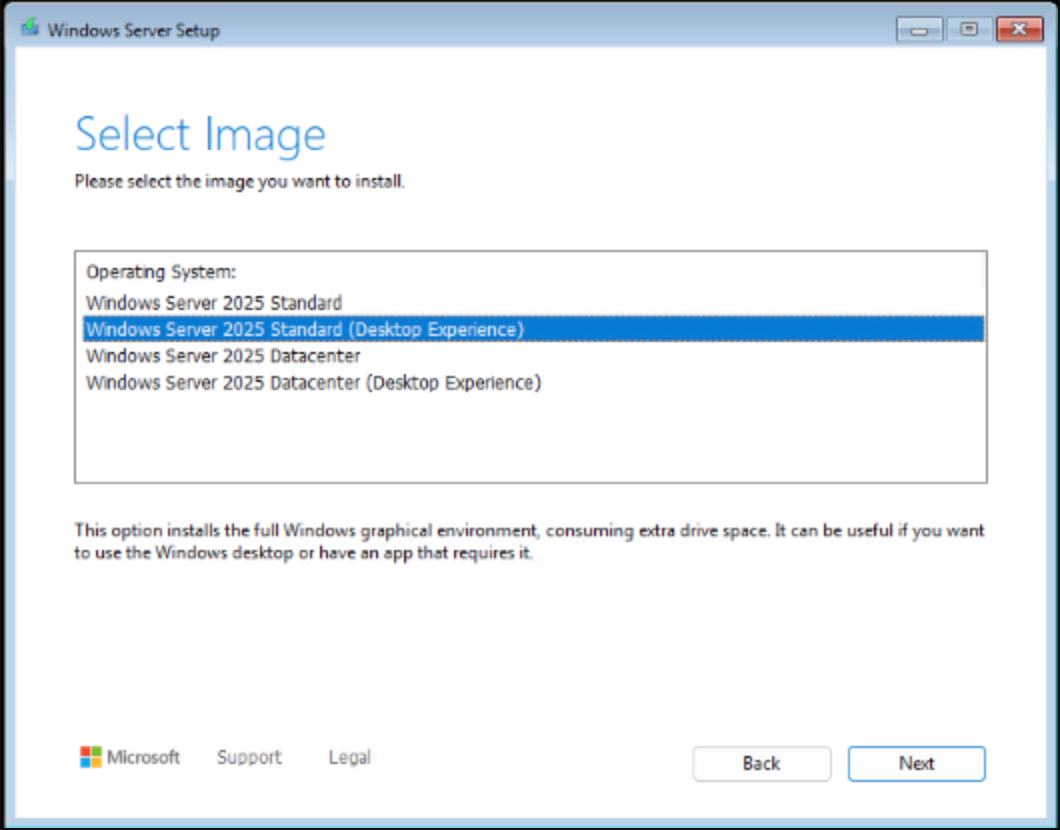
↑ Select "Windows Server 2025 Standard (Desktop Experience)" for the full graphical interface.
License Terms: Review and accept the Microsoft Software License Terms to continue.
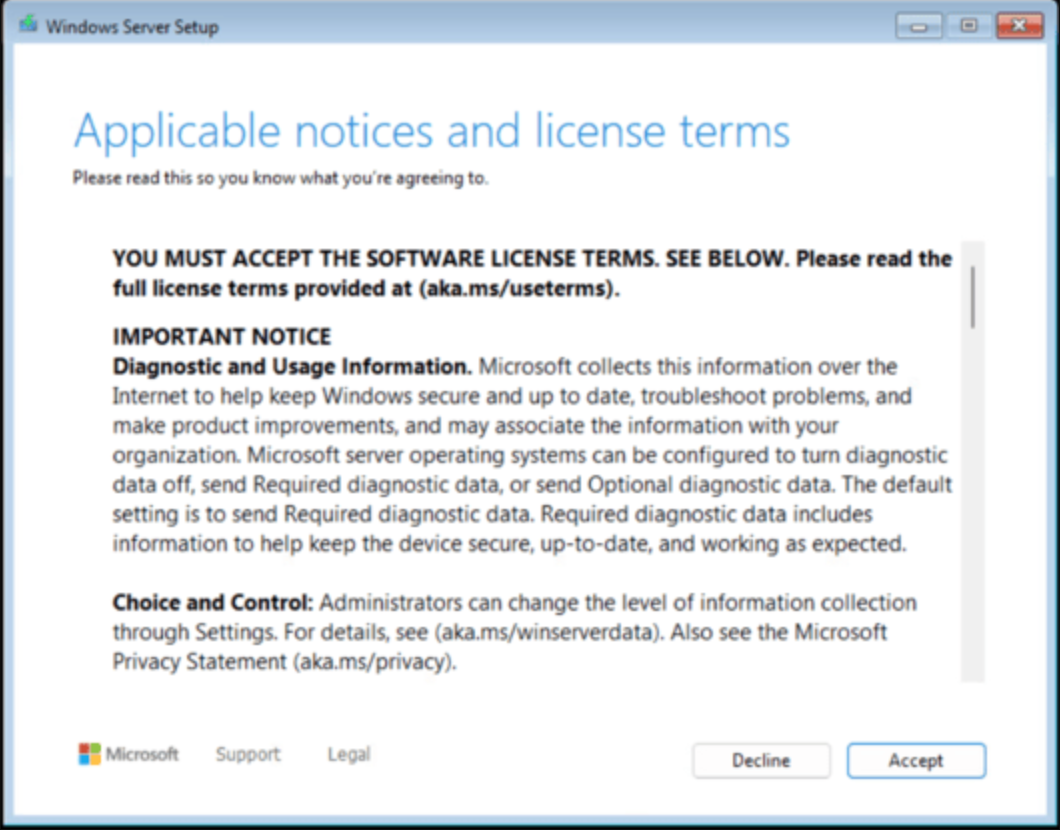
↑ Accept the Microsoft licence terms to proceed with the installation.
Installation Type: Select "Custom: Install Windows only (advanced)" for a clean installation.
Disk Selection: Choose the target disk or partition. Delete existing partitions as needed for a clean install, create a new partition, and click Next.
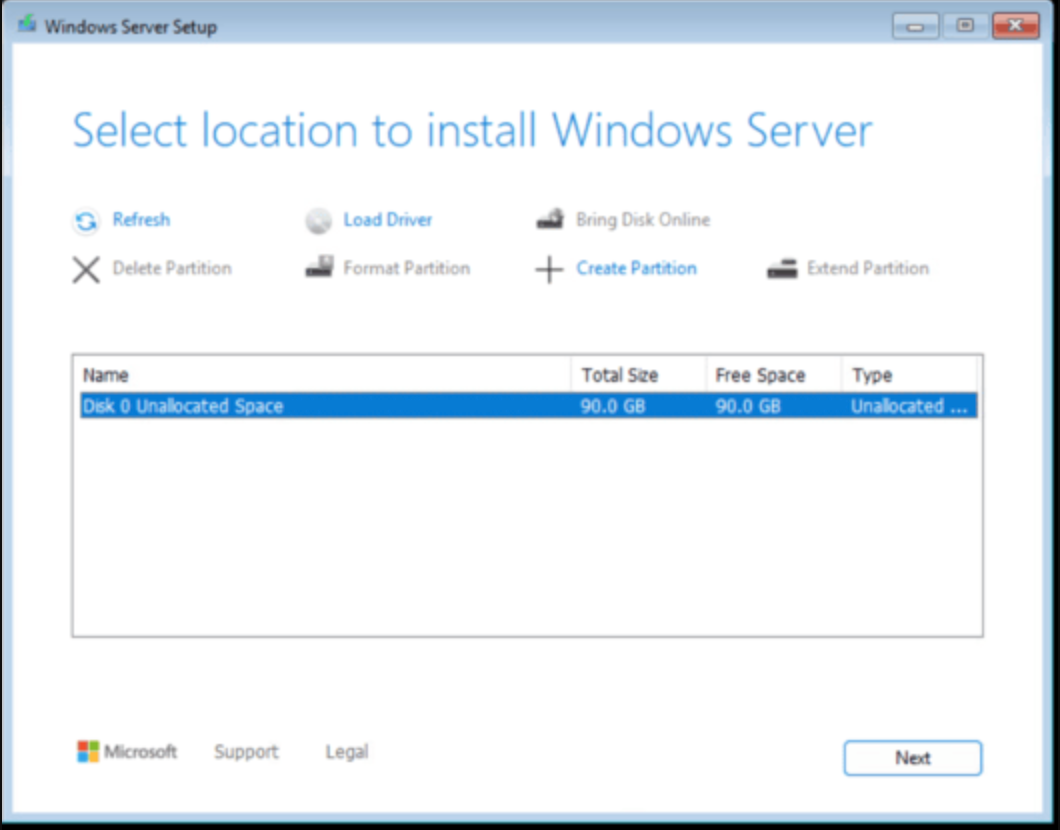
↑ Select the target disk or partition. Delete and recreate partitions for a completely clean installation.
Begin Installation: Click "Install". Windows Server 2025 Standard will copy all files and install features — this may take 20–60 minutes and involves several automatic restarts.
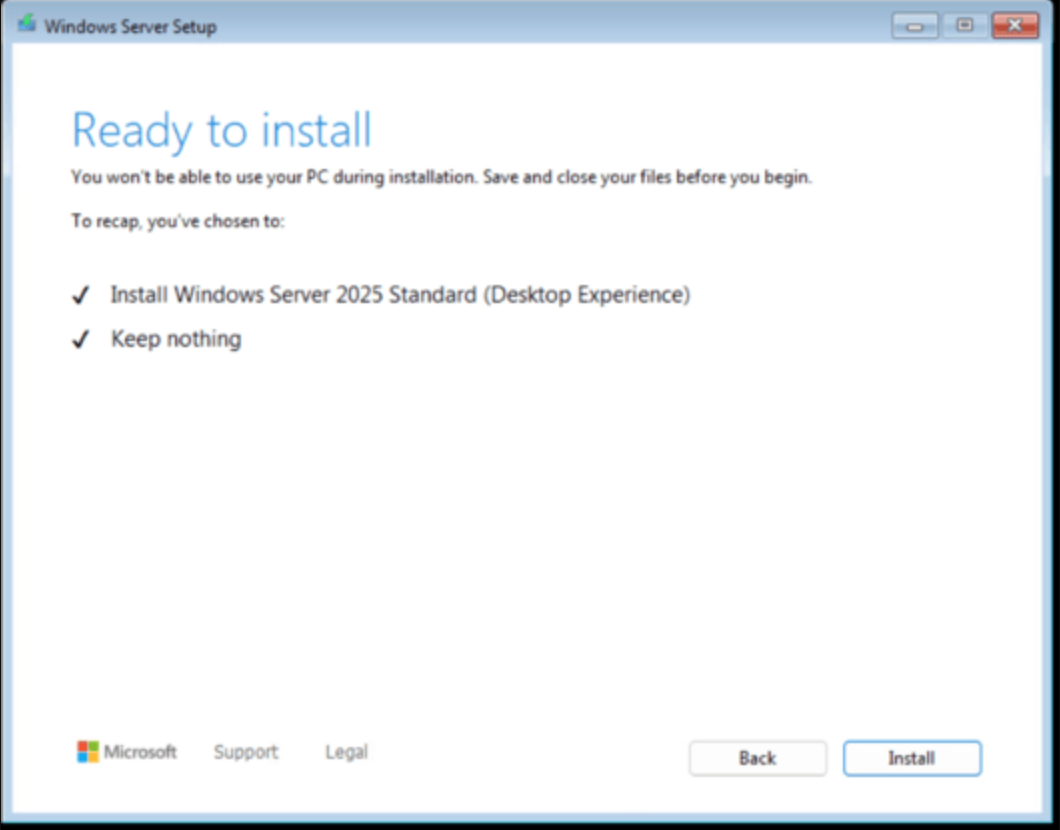
↑ Windows Server 2025 Standard copying and installing — do not power off the server during this process.
Post-Installation Configuration:
Administrator Password: After installation completes, you will be prompted to set a strong password for the built-in Administrator account. Use a complex password with uppercase, lowercase, numbers, and symbols.
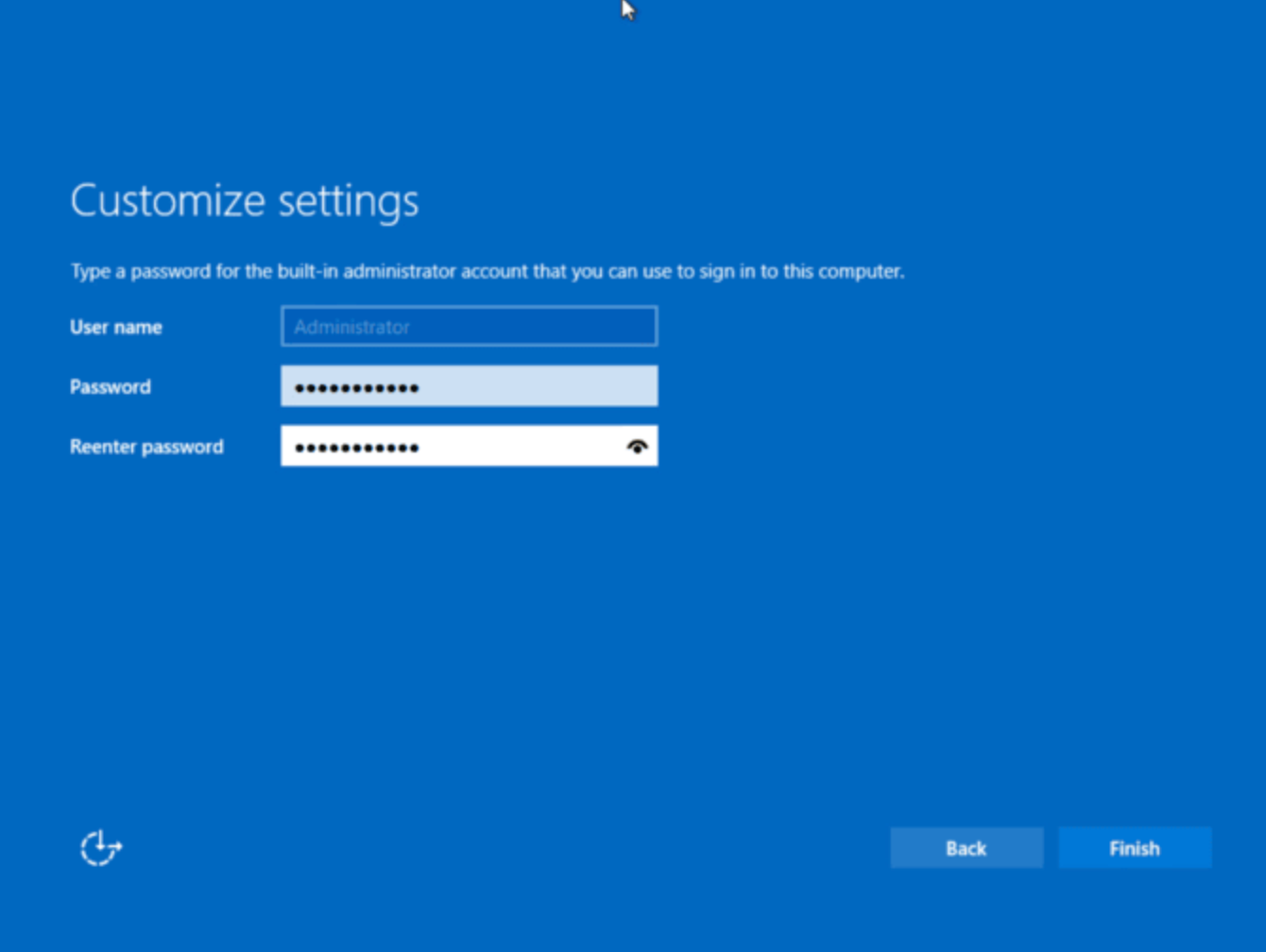
↑ Create a strong Administrator password — this is the primary access credential for your server.
Login: Press Ctrl + Alt + Delete and enter your Administrator credentials to log in for the first time.
Initial Configuration: Configure your network settings, install any required hardware drivers, and run Windows Update immediately to ensure your server has the latest security patches.
Activate Windows Server 2025 Standard
Method 1 — Using Command Prompt (Recommended):
Open Command Prompt as Administrator: type CMD in the Start search, right-click → Run as administrator.
Execute the following DISM command — replacing XXXXX-XXXXX-XXXXX-XXXXX-XXXXX with your genuine Windows Server 2025 Standard key from MMKeys:
Dism /online /Set-Edition:ServerStandard /AcceptEula /ProductKey:XXXXX-XXXXX-XXXXX-XXXXX-XXXXX
Press Enter and wait for the DISM command to process — typically 1–5 minutes. The system will set the edition to Windows Server 2025 Standard and activate your licence.
Restart the server when prompted to complete the edition upgrade and activation.
Method 2 — Using the Settings Menu:
Go to Settings → System → Activation.
Click "Change product key" and enter your Windows Server 2025 Standard key from MMKeys.
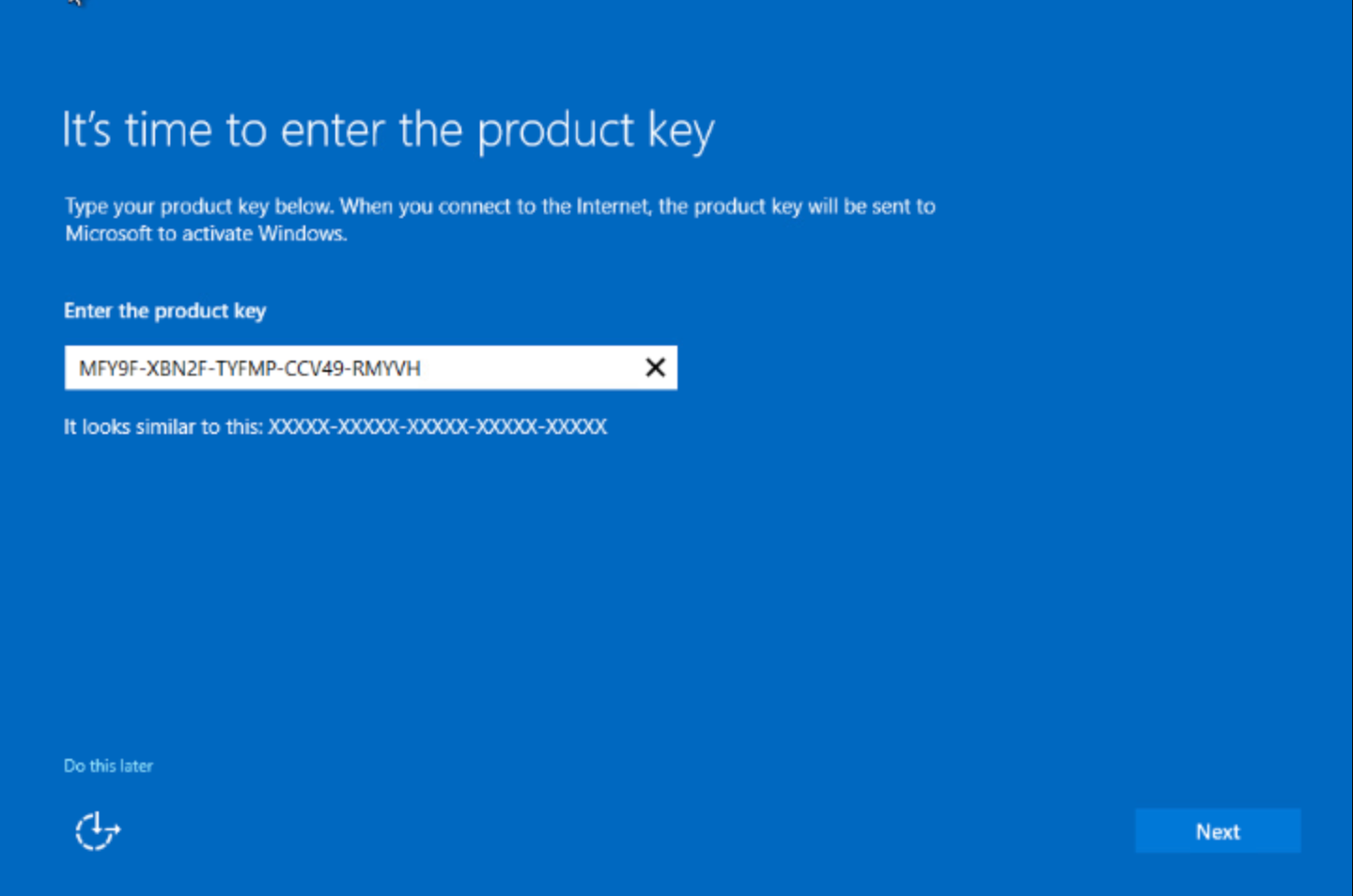
↑ Alternatively activate via Settings → System → Activation → Change product key.
Follow the on-screen instructions to complete activation. Restart if prompted.
💡 Post-Activation Recommendations
Install Roles and Features: Use Server Manager → Add Roles and Features to install the server roles your environment requires — Active Directory Domain Services, DNS, DHCP, IIS, Hyper-V, Remote Desktop Services, File and Storage Services, or any other required roles.
Run Windows Update: Open Settings → Windows Update → Check for Updates immediately after activation and install all available updates — including cumulative security patches and driver updates. Set up a regular update schedule to keep your server protected.
Implement Security Best Practices: Configure Windows Defender Firewall inbound and outbound rules, enable Microsoft Defender Antivirus, schedule regular automated backups using Windows Server Backup or Azure Backup, and configure audit policies for compliance and monitoring.
Connect to Azure Arc (optional): Onboard your Windows Server 2025 Standard instance to Azure Arc from the Azure portal for centralised management, Microsoft Defender for Cloud integration, Azure Monitor, and unified policy governance across your hybrid IT estate.
Server Won't Boot from USB — "Boot Device Not Found" or Restart Loop
Cause: The BIOS/UEFI boot order is not set to prioritise the USB drive, or the bootable USB was created incorrectly for the server's firmware mode.
Solution:
- Restart and press the BIOS/UEFI access key (F2, Del, F10 — varies by manufacturer). Navigate to the Boot section and move the USB drive to the first boot device position. Save and exit.
- Ensure the USB was created with GPT partition scheme for UEFI-based servers. Recreate using Rufus with GPT selected if needed.
- If Secure Boot causes issues, temporarily disable it in UEFI settings for the installation, then re-enable it after Windows Server 2025 Standard is installed and activated.
- Try a different USB port — some servers only support USB boot from USB 2.0 ports during early startup. Avoid USB 3.0/3.1 ports if the drive is not being recognised.
DISM Activation Error 0xc004e016 — "The Product Key Is Invalid"
Cause: The product key entered is for a different Windows Server edition, Command Prompt was not opened as Administrator, or the key contains a typo.
Solution:
- Confirm Command Prompt was opened by right-clicking and selecting Run as administrator — running without elevated privileges always fails.
- Verify the DISM command uses
ServerStandard— this is the correct identifier for Windows Server 2025 Standard. Do not useServerDatacenter(Datacenter edition) or other edition identifiers. - Copy and paste your key directly from your MMKeys order email — never type it manually to avoid character errors.
- Try the GUI activation method as an alternative: Settings → System → Activation → Change product key.
- Contact MMKeys 24/7 support if the issue persists — your key is covered by lifetime warranty.
Installation Hangs at "Getting Ready" or Server Restarts Repeatedly
Cause: Non-essential peripherals causing driver conflicts, hardware compatibility issues, faulty RAM, or a corrupted ISO download are the most common causes.
Solution:
- Disconnect all non-essential peripherals before installation — external drives, USB hubs, printers, and docking stations. Leave only the keyboard, mouse, and bootable USB connected.
- If using a RAID controller, load the RAID driver during Windows Setup by clicking "Load driver" on the disk selection screen and pointing it to the controller's driver files.
- Test your server's RAM using Memtest86 (run several passes) to rule out memory faults — bad RAM is a frequent cause of random installation failures.
- Re-download the ISO from Microsoft's Evaluation Center and recreate the bootable USB — the original download may have been interrupted or corrupted.
100% Genuine Keys
Official Microsoft product keys — authentic and guaranteed to activate.
Instant Delivery
Your digital activation code arrives by email seconds after payment — 24/7.
Best Price Guarantee
Discounted Microsoft keys — best price without compromising authenticity.
Lifetime Warranty
Every key carries a lifetime warranty. If it ever fails, we replace it free.
Money-Back Guarantee
Not satisfied? We offer a full money-back guarantee — no questions asked.
24/7 Support
Our technical team is always ready to help with installation or any issue.
🔑 If you don't have a product key yet — get your genuine Windows Server 2025 Standard key here at the best price. Instant delivery across USA & Canada.
Get Your Product Key Here →Buy Windows Server 2025 Standard — Genuine Key at the Best Price in USA & Canada
MMKeys.com is your trusted source for genuine Microsoft software keys across the USA and Canada. Windows Server 2025 Standard is Microsoft's latest server OS — delivering Secured-Core Server security, Azure Arc hybrid management, SMB over QUIC, TLS 1.3, improved performance and containerisation, plus virtualisation rights for up to 2 VMs — all in a one-time purchase with a lifetime licence. The most secure and cloud-ready Windows Server release ever built.
All our Windows Server product keys are 100% authentic and activate directly through Microsoft's official activation system via the DISM command or Settings. Buy your cheap Windows Server 2025 Standard key today and receive your digital activation code instantly by email. Every purchase includes a full lifetime warranty and money-back guarantee — making MMKeys the most trusted source for discounted Microsoft software keys in North America.


