
Windows Server 2025 Datacenter:
How to Download, Install & Activate
Complete guide to downloading, installing and activating Windows Server 2025 Datacenter — the most powerful and scalable Windows Server edition, with unlimited virtualisation rights, software-defined infrastructure, and the latest Azure hybrid capabilities. Genuine key — instant delivery across USA & Canada.
Windows Server 2025 Datacenter is the latest and most advanced server operating system from Microsoft — developed for the constantly changing requirements of modern enterprise IT infrastructures. With greater stability, faster speed, AI-ready capabilities, and seamless integration with cloud services, it offers a powerful and infinitely scalable environment — perfect for any business running large virtualisation estates or mission-critical workloads. It includes all Windows Server 2025 Standard features plus unlimited virtual machines per host, Storage Spaces Direct, Software-Defined Networking (SDN), Shielded VMs, and all Datacenter-exclusive features.
🖥 Unlimited VM Rights DATACENTER
The Datacenter licence covers unlimited Windows Server virtual machines on a licensed physical host — making it dramatically more cost-effective than Standard (limited to 2 VMs) for heavily virtualised environments.
💾 Storage Spaces Direct DATACENTER
Build hyper-converged infrastructure (HCI) using commodity server hardware. Storage Spaces Direct pools local storage across multiple servers to create highly resilient, high-performance software-defined storage — without expensive SAN hardware.
🌐 Software-Defined Networking DATACENTER
Full SDN stack including Network Controller, Software Load Balancer, and RAS Gateway — enabling centralised, programmable network management at data centre scale for multi-tenant and enterprise environments.
🛡 Shielded VMs DATACENTER
Protect Hyper-V VMs from unauthorised access — even by administrators — using Shielded VMs with TPM-based encryption and Host Guardian Service. Ideal for multi-tenant hosting environments and high-compliance workloads.
🔐 Secured-Core Server
Advanced hardware-rooted security using TPM 2.0, UEFI Secure Boot, Virtualisation-Based Security (VBS), and Hypervisor-Protected Code Integrity (HVCI) — protecting against firmware attacks and advanced threats at the boot level.
☁ Azure Arc & Hybrid Cloud
Manage your on-premises Server 2025 infrastructure directly from the Azure portal using Azure Arc — enabling unified governance, Microsoft Defender for Cloud, Update Management, Change Tracking, and policy enforcement across hybrid estates.
| Feature | Standard | Datacenter |
|---|---|---|
| Core OS & all server roles | ✔ | ✔ |
| Secured-Core Server | ✔ | ✔ |
| Azure Arc integration | ✔ | ✔ |
| SMB over QUIC & TLS 1.3 | ✔ | ✔ |
| Hyper-V & containers | ✔ | ✔ |
| VM virtualisation rights | 2 VMs per licence | Unlimited ★ |
| Storage Spaces Direct (S2D) | ✗ | ✔ ★ |
| Storage Replica (unlimited) | Limited | Unlimited ★ |
| Software-Defined Networking | ✗ | ✔ ★ |
| Shielded VMs | ✗ | ✔ ★ |
| Hyper-V isolated containers | ✔ | ✔ |
| License Type | Per core · 2 VMs | Per core · Unlimited VMs |
🔑 Don't have a product key yet? Get your genuine Windows Server 2025 Datacenter key at the best price — instant digital delivery across USA & Canada.
Buy Your Product Key Now →Windows Server 2025 Datacenter Prerequisites
Setup Media: Installation media for Windows Server 2025 Datacenter can be obtained from various sources including OEM, Retail, Visual Studio subscription, and the Volume Licensing Service Center (VLSC). The installation must be performed on a local machine — not within an Azure environment. For Azure deployments, refer to Microsoft's official Azure documentation.
🖥 Minimum Hardware Requirements
| Component | Minimum Specification |
|---|---|
| Processor | 64-bit, 1.4 GHz or higher · x64-compatible · NX, DEP, CMPXCHG16b, LAHF/SAHF, PrefetchW required · SSE4.2 and POPCNT recommended |
| RAM | 512 MB minimum · 2 GB or more recommended · 16 GB+ recommended for Datacenter virtualisation workloads |
| Hard Disk | 32 GB minimum · 100 GB+ recommended · NVMe SSD strongly recommended for Datacenter workloads |
| Network Adapter | Gigabit Ethernet (10/100/1000 BASE-T) · 10 GbE or higher recommended for Datacenter environments |
| Firmware | UEFI 2.3.1c or later with Secure Boot capability |
| TPM | TPM 2.0 recommended — required for Secured-Core Server and Shielded VMs |
| USB Drive | Minimum 8 GB USB flash drive for bootable installation media |
📋 Software Requirements
- Choose the appropriate edition — Windows Server 2025 Datacenter — based on your virtualisation and infrastructure requirements. See the comparison table above for detailed edition differences.
- Ensure you have a valid Windows Server 2025 Datacenter product key from MMKeys. Activation requirements may vary based on your distribution channel (Retail, OEM, or Volume Licensing).
- For Datacenter-exclusive features like Storage Spaces Direct and Shielded VMs, all host servers in the cluster must also be licensed as Datacenter.
Download the Windows Server 2025 ISO File
Download the official Windows Server 2025 ISO from Microsoft's Evaluation Center — the official, free source for Windows Server installation media:
https://www.microsoft.com/en-us/evalcenter/download-windows-server-2025
Navigate to the URL above and select Windows Server 2025.
Choose your preferred language from the dropdown.
Click on the Download the ISO link and complete the brief form to access the download.
Save the ISO file to a convenient location. The file is approximately 5 GB — ensure you have a stable internet connection for the download.
Create Bootable Installation Media
Before installation, prepare a bootable USB drive using the downloaded ISO file. You will need a USB flash drive with at least 8 GB of capacity.
🪟 For Windows Users — Using diskpart
- Insert your USB flash drive into a Windows PC.
- Open Command Prompt as Administrator (search cmd → right-click → Run as administrator).
- Type
diskpartand press Enter to launch the disk management utility. - Type
list diskto identify your USB drive number. Typeselect disk N(replace N with your USB disk number — be careful to select the correct disk). - Type the following commands in order:
clean→create partition primary→select partition 1→active→format fs=fat32 quick→assign→exit - Mount the ISO file (right-click → Mount in Windows Explorer) and copy all contents from the mounted drive to your formatted USB drive.
🍎 For macOS / Linux Users — Using the dd command
- Insert your USB flash drive into your Mac or Linux machine.
- Open Terminal.
- Identify your USB drive using
diskutil list(macOS) orlsblk(Linux). Note the device identifier (e.g./dev/disk2on macOS or/dev/sdbon Linux). - On macOS, unmount the disk first:
diskutil unmountDisk /dev/diskN - Flash the ISO to the USB using the
ddcommand:
sudo dd if=/path/to/WindowsServer2025.iso of=/dev/disk2 bs=4m status=progress
sudo dd if=/path/to/WindowsServer2025.iso of=/dev/sdb bs=4M status=progress && sync
dd command and diskpart formatting will erase all data on the USB drive. Ensure you have selected the correct device and backed up any important files on the USB before proceeding.Install Windows Server 2025 Datacenter
Boot from USB:
Insert the bootable USB drive into your server or PC and restart the system.
Access the boot menu by pressing the appropriate key during startup — typically F12, F10, or Esc (consult your server or motherboard documentation for the correct key).
Select the USB drive as the primary boot device.
Installation Steps:
Language and Region Settings: Choose your preferred language, time zone, and keyboard layout. Click Next.
Install Now: Click "Install Now" to begin the installation process.
Product Key: Enter your Windows Server 2025 Datacenter product key from MMKeys when prompted, or choose "I don't have a product key" to enter it later during activation.
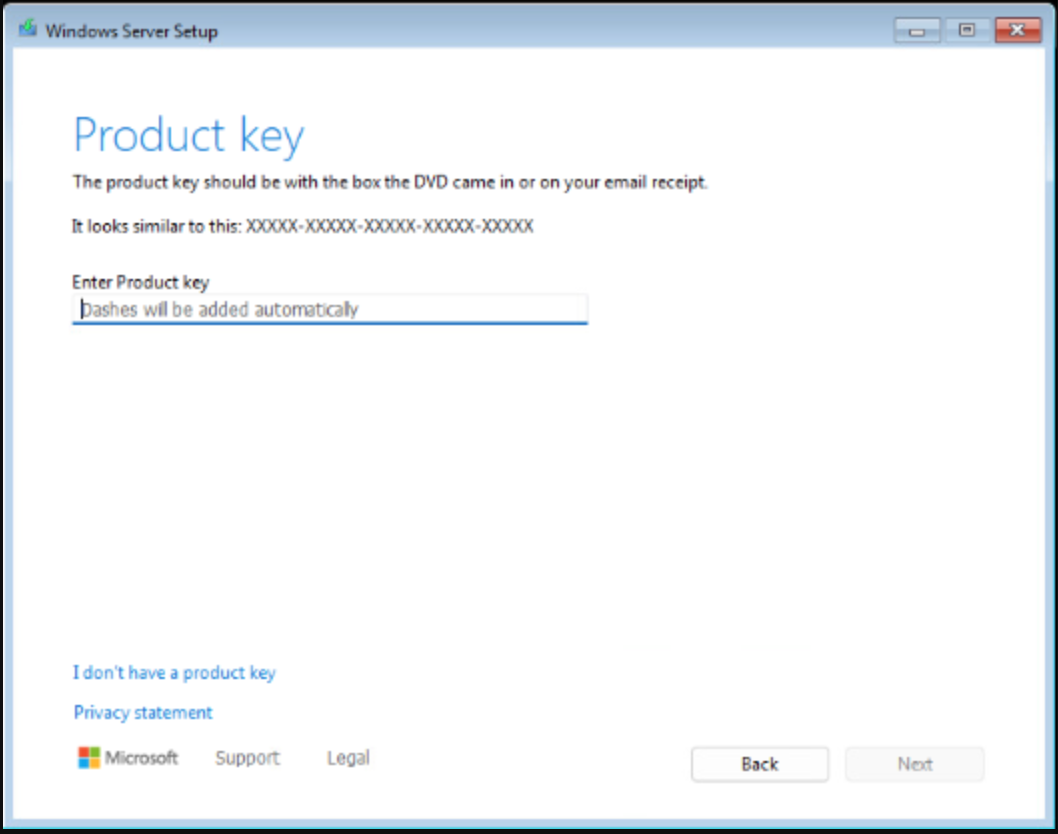
↑ Enter your genuine Windows Server 2025 Datacenter product key from MMKeys, or skip to enter it during activation.
Select Edition: Choose "Windows Server 2025 Datacenter (Desktop Experience)" for a full GUI-based installation — recommended for most enterprise deployments. Select the Core option only if you specifically need a minimal headless server installation.
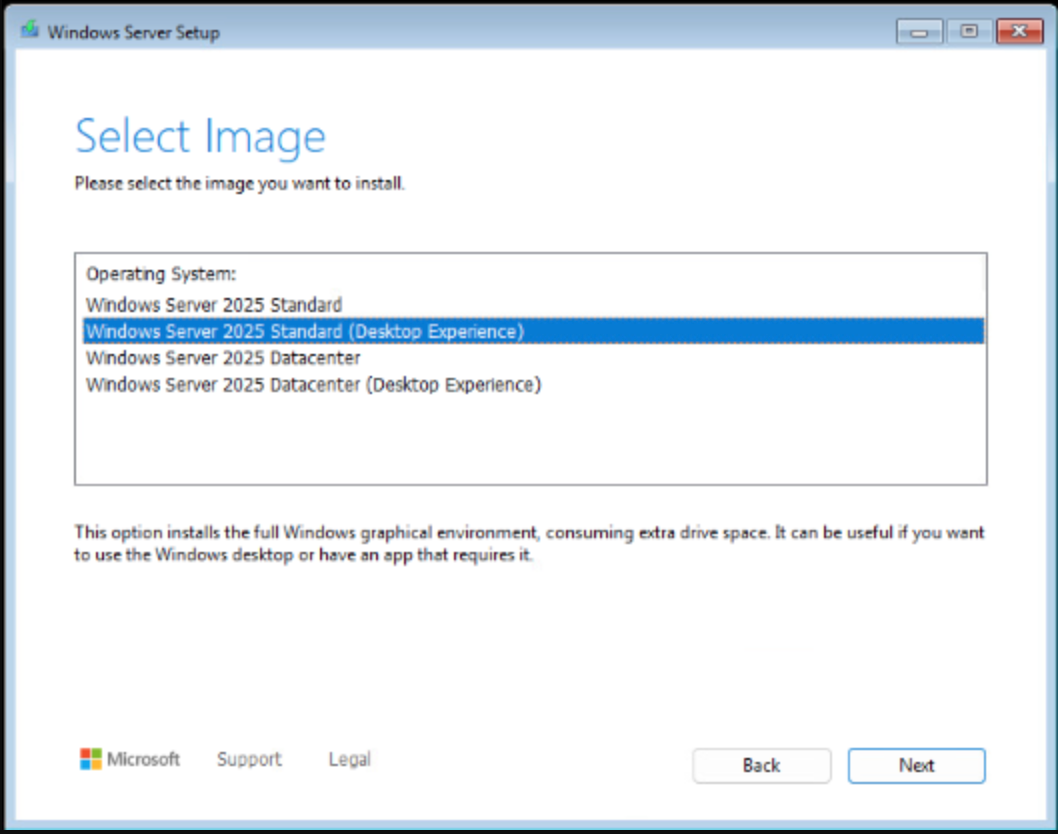
↑ Select "Windows Server 2025 Datacenter (Desktop Experience)" for the full GUI installation.
License Terms: Read and accept the Microsoft Software License Terms to continue.
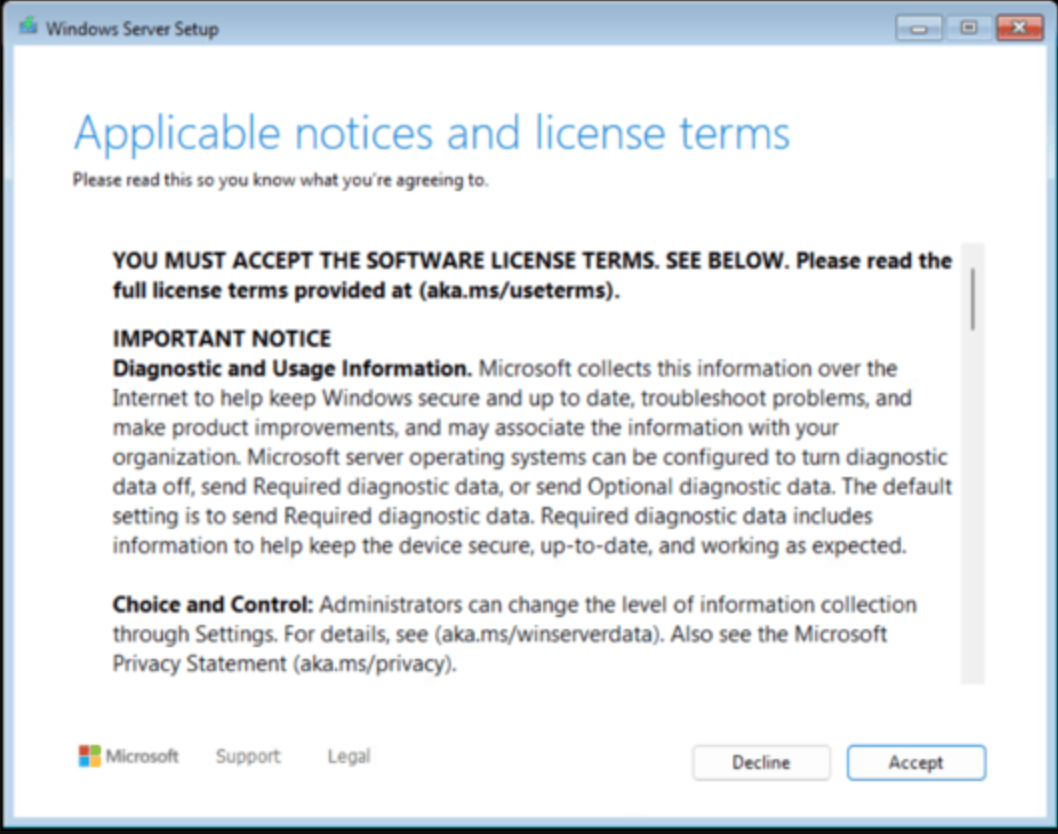
↑ Accept the licence terms to proceed with the installation.
Installation Type: Choose "Custom: Install Windows only (advanced)" for a fresh/clean installation on the server.
Disk Selection: Select the disk or partition where Windows Server 2025 will be installed. Delete existing partitions or create a new partition as required. Click Next.
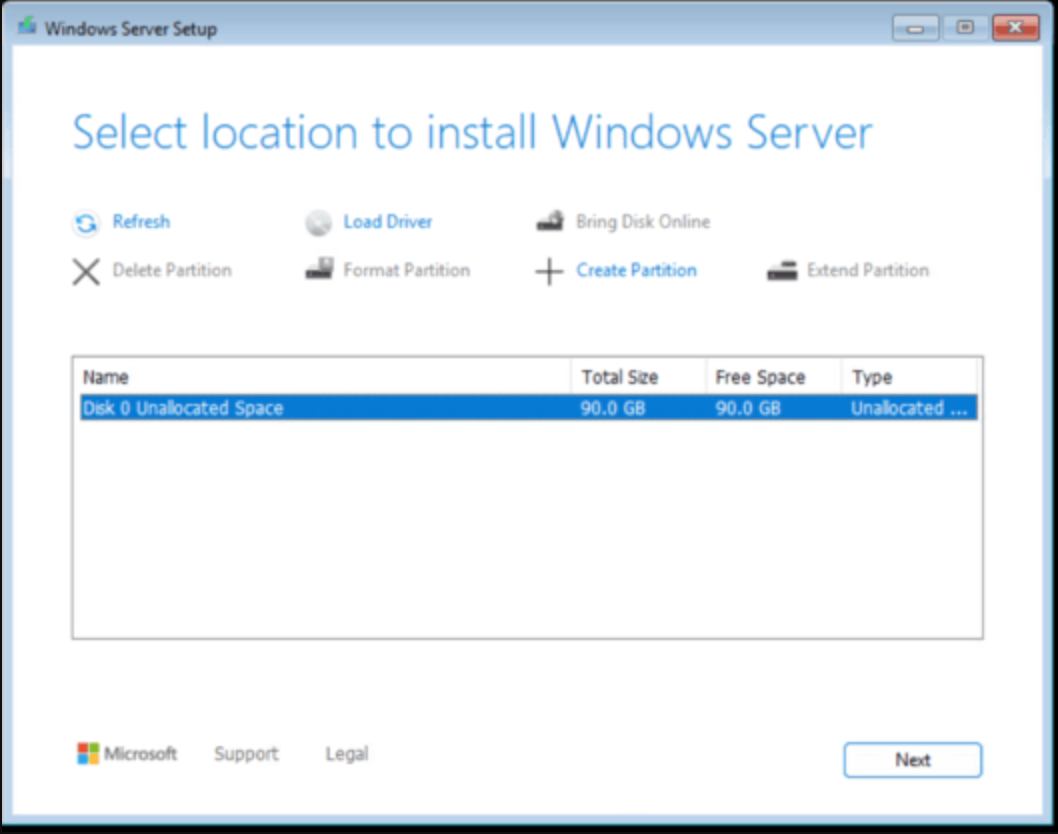
↑ Select your target disk or partition for the installation. Delete and recreate partitions for a clean install.
Begin Installation: Click "Install" to start. Windows Server 2025 Datacenter will copy files and install all features — this process may take 20–60 minutes and involve several automatic restarts.
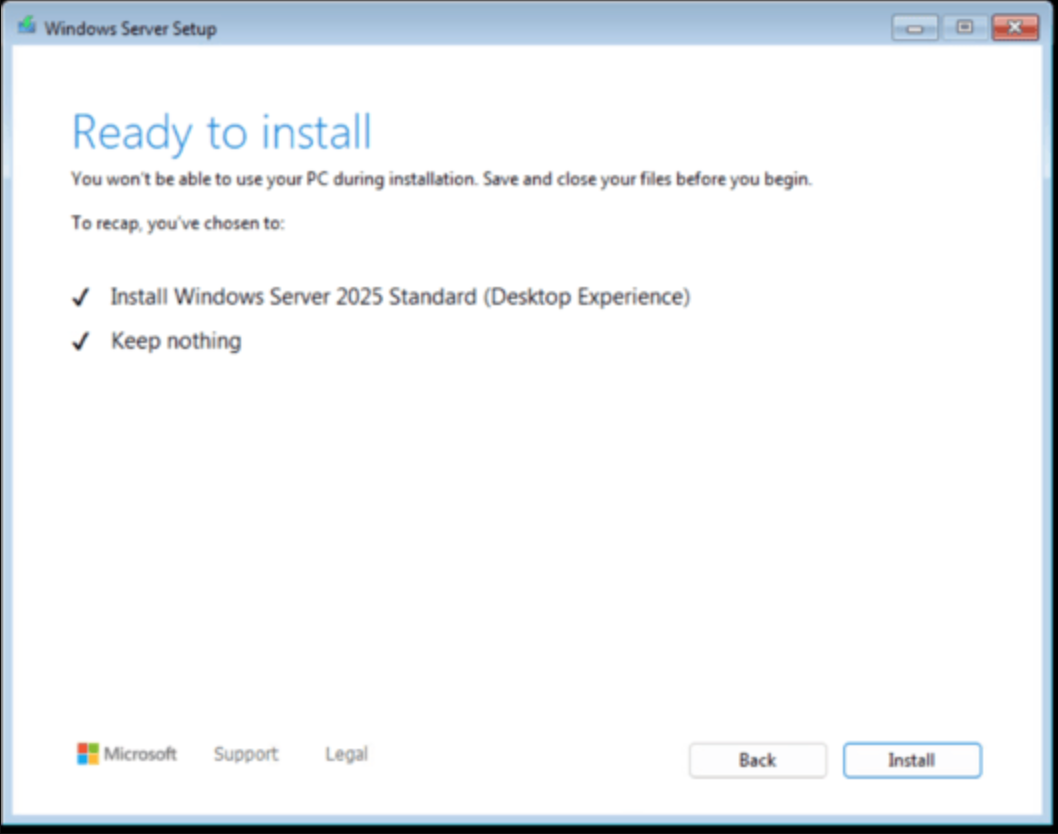
↑ Windows Server 2025 Datacenter copying and installing files — do not power off the server during this process.
Post-Installation Configuration:
Administrator Password: After installation completes, you will be prompted to set a strong password for the built-in Administrator account. Use a complex password combining uppercase, lowercase, numbers, and symbols.
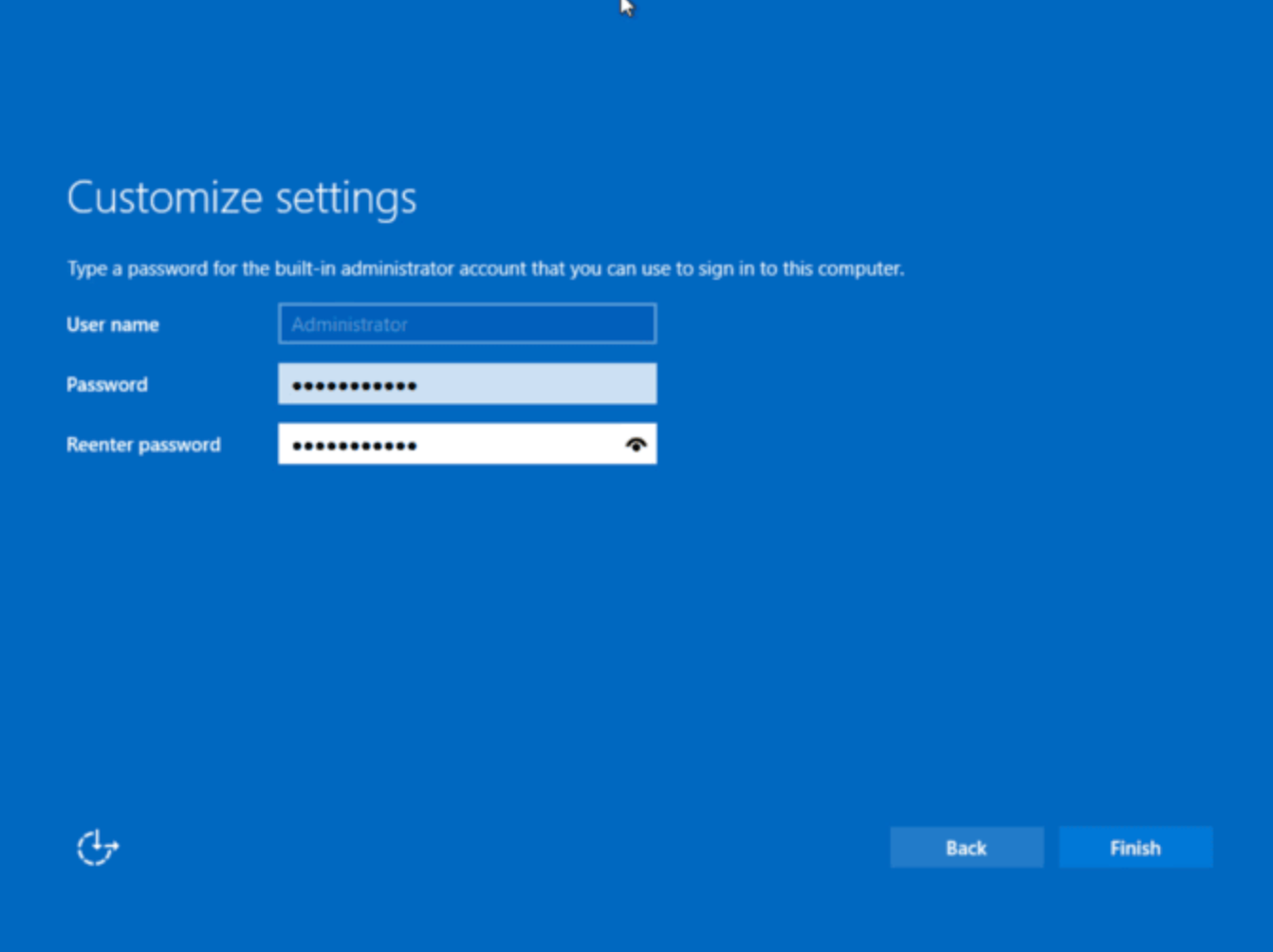
↑ Create a strong Administrator password — this is your primary server access credential.
Login: Press Ctrl + Alt + Delete and enter your Administrator credentials to log in for the first time.
Initial Configuration: Configure network settings, install any required hardware drivers, and run Windows Update immediately to ensure your server has the latest security patches.
Activate Windows Server 2025 Datacenter
Method 1 — Using Command Prompt (Recommended):
Open Command Prompt as Administrator: type CMD in the Start search, right-click → Run as administrator.
Execute the following DISM command — replacing XXXXX-XXXXX-XXXXX-XXXXX-XXXXX with your genuine Windows Server 2025 Datacenter product key from MMKeys:
Dism /online /Set-Edition:ServerDatacenter /AcceptEula /ProductKey:XXXXX-XXXXX-XXXXX-XXXXX-XXXXX
Press Enter. The DISM command will process the activation and upgrade your edition to Windows Server 2025 Datacenter. Allow 1–5 minutes for the process to complete.
When prompted, restart the server to complete the edition upgrade and activation.
Method 2 — Using the Settings Menu:
Navigate to Settings → System → Activation.
Click "Change product key" and enter your valid Windows Server 2025 Datacenter product key from MMKeys.
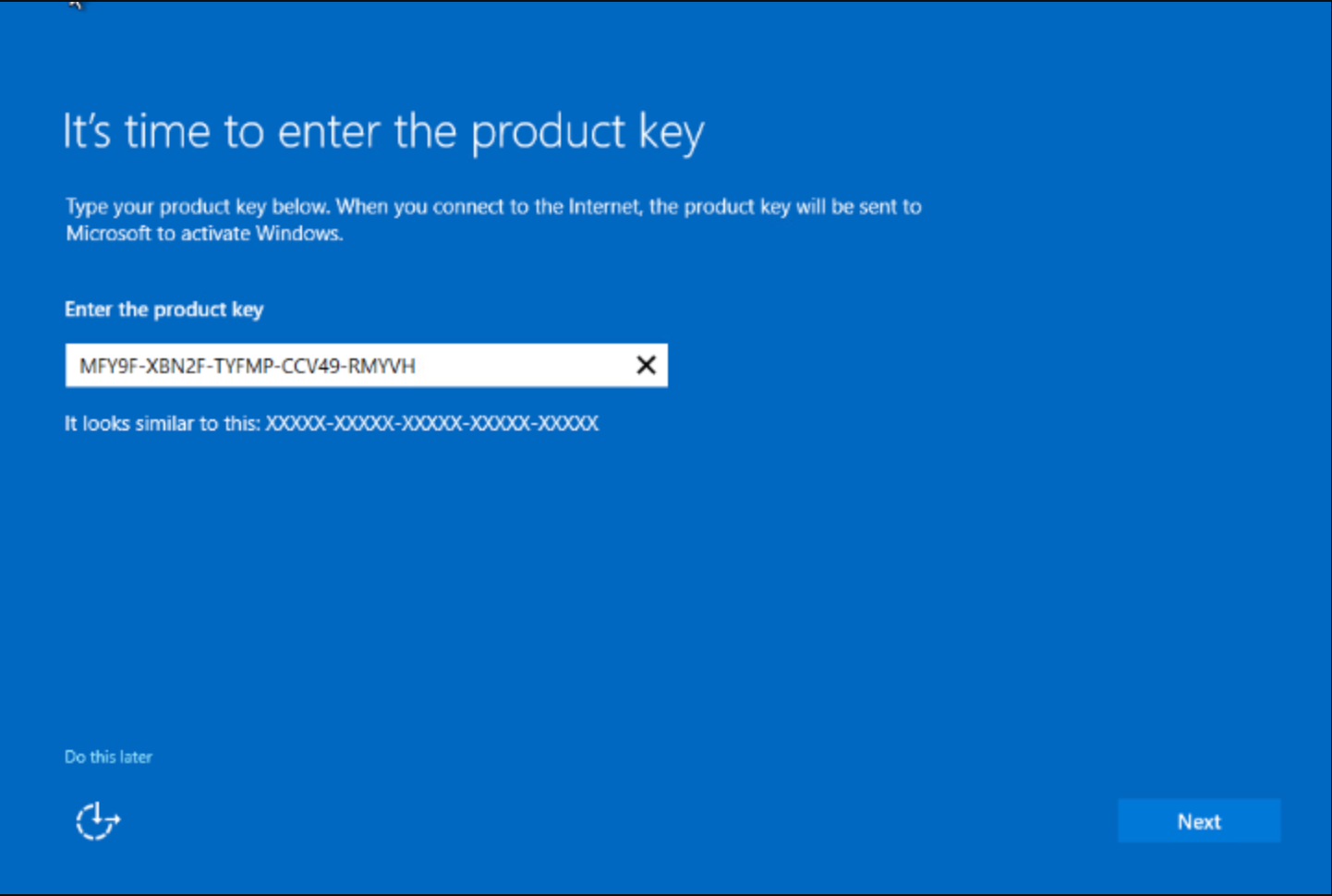
↑ Enter your product key in Settings → System → Activation → Change product key.
Follow the on-screen instructions to complete the activation. Restart if prompted.
💡 Post-Activation Recommendations
Install Roles and Features: Use Server Manager → Add Roles and Features to install the server roles your environment requires — such as Active Directory Domain Services, DNS, DHCP, IIS, Hyper-V, Remote Desktop Services, or the Datacenter-exclusive roles like Storage Spaces Direct and Network Controller.
Regular Updates: Keep your server protected and stable by installing Windows updates regularly — open Settings → Windows Update → Check for Updates immediately after activation and set a regular update schedule.
Security Measures: Implement server hardening best practices — configure Windows Defender Firewall rules, enable Microsoft Defender Antivirus, set up automated backups using Windows Server Backup or Azure Backup, and configure audit policies for compliance.
Connect to Azure Arc (optional): Link your Server 2025 Datacenter instance to Azure Arc from the Azure portal for unified governance, Microsoft Defender for Cloud integration, Azure Monitor, and centralised update management across your hybrid infrastructure.
Server Won't Boot from USB — No Bootable Device Found
Cause: BIOS/UEFI boot order is not configured to prioritise the USB drive, or the bootable USB was not created correctly for the server's firmware mode (UEFI vs Legacy).
Solution:
- Access BIOS/UEFI settings on startup (F2, Del, F10, or F12 depending on your hardware) and move the USB drive to the top of the boot order.
- Verify the USB was created with the correct partition scheme — use GPT for UEFI-based servers. Recreate the USB using Rufus with the GPT option if needed.
- If your server uses Secure Boot, ensure the bootable USB is signed or temporarily disable Secure Boot in UEFI for the installation, then re-enable it afterward.
- Try a different USB port — some servers only support booting from USB 2.0 ports during early startup. Avoid USB 3.0/3.1 ports if the system does not recognise the drive.
DISM Activation Fails — "Error 0xc004e016" or Edition Mismatch
Cause: The product key is for a different edition than what is installed, Command Prompt was not run as Administrator, or the key contains a typo.
Solution:
- Confirm Command Prompt was opened with Run as administrator — running without elevated privileges always fails silently or with an access error.
- Verify the DISM command uses
ServerDatacenter(notServerStandard) — Datacenter and Standard keys are not interchangeable. - Copy and paste your key directly from the MMKeys order email — do not type it manually to avoid character errors.
- Try the GUI activation method: Settings → System → Activation → Change product key as an alternative to the DISM command.
- Contact MMKeys 24/7 support if issues persist — every key is backed by our lifetime warranty.
Storage Spaces Direct or SDN Features Not Available After Installation
Cause: Datacenter-exclusive features like Storage Spaces Direct and Software-Defined Networking are available in the Datacenter edition but must be enabled and configured manually through Server Manager or PowerShell — they are not pre-configured out of the box.
Solution:
- Verify your edition is Windows Server 2025 Datacenter — go to Settings → System → About and confirm the edition name.
- To enable Storage Spaces Direct, open PowerShell as Administrator and run:
Enable-ClusterStorageSpacesDirect(requires a Failover Cluster to be already configured). - For Software-Defined Networking, deploy the Network Controller role using the Add Roles and Features Wizard in Server Manager → Network Controller.
- Refer to Microsoft's official documentation for step-by-step deployment guides for each Datacenter-exclusive feature.
100% Genuine Keys
Official Microsoft product keys — authentic and guaranteed to activate.
Instant Delivery
Your digital activation code arrives by email seconds after payment — 24/7.
Best Price Guarantee
Discounted Microsoft keys — best price without compromising authenticity.
Lifetime Warranty
Every key carries a lifetime warranty. If it ever fails, we replace it free.
Money-Back Guarantee
Not satisfied? We offer a full money-back guarantee — no questions asked.
24/7 Support
Our technical team is always ready to help with installation or any issue.
🔑 If you don't have a product key yet — get your genuine Windows Server 2025 Datacenter key here at the best price. Instant delivery across USA & Canada.
Get Your Product Key Here →Buy Windows Server 2025 Datacenter — Genuine Key at the Best Price in USA & Canada
MMKeys.com is your trusted source for genuine Microsoft software keys across the USA and Canada. Windows Server 2025 Datacenter is Microsoft's most powerful and scalable server platform — delivering unlimited VM virtualisation rights, Storage Spaces Direct, Software-Defined Networking, Shielded VMs, Secured-Core Server security, Azure Arc hybrid management, and all of the latest Windows Server 2025 capabilities. Whether you are building a hyper-converged infrastructure, software-defined data centre, or large-scale Hyper-V virtualisation environment, Server 2025 Datacenter provides the foundation for enterprise success.
All our Windows Server product keys are 100% authentic and activate directly through Microsoft's official activation system. Buy your cheap Windows Server 2025 Datacenter key today and receive your digital activation code instantly by email. Every purchase includes a full lifetime warranty and money-back guarantee — making MMKeys the most trusted source for discounted Microsoft software keys in North America.


