




Interac e-Transfer for Microsoft Digital Products: Secure & Instant Payment Guide

Introduction – The Canadian Way to Pay
When you are purchasing essential software like Windows 11 or Office 2024, you want a payment method that is as fast and secure as the digital delivery itself. At mmkeys.com, we prioritize your security and convenience, which is why we proudly accept Interac e-Transfer the most trusted way to send money in Canada.
Why Choose Interac e-Transfer at mmkeys.com?
Interac e-Transfer is a favorite for our customers because it bridges the gap between traditional banking and modern e-commerce. Here is why it’s the ideal choice for your next Microsoft license:
Bank-Grade Security: You never have to share your credit card or financial details with us. The transaction is handled entirely through your own bank’s secure portal.
No Hidden Fees: Unlike some credit card processors, there are no surprise service charges added to your checkout total.
Instant Processing: Once the transfer is sent, we receive a notification almost immediately, allowing us to process your digital key faster.
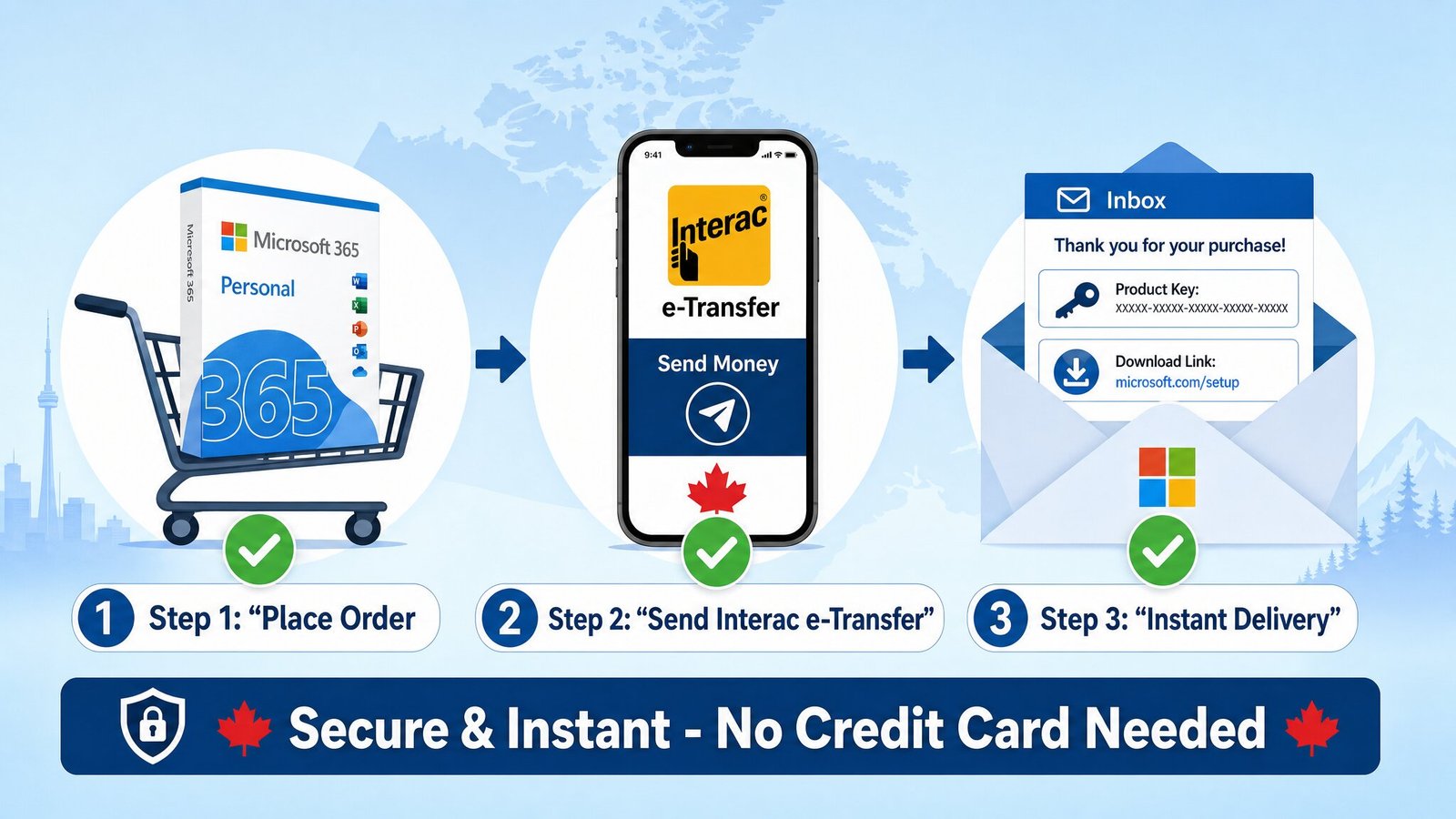
How it Works: 3 Simple Steps
Getting your genuine Microsoft software keys using Interac is straightforward. Here is exactly how we handle the process:
1. Place Your Order
Select your desired Microsoft product whether it’s a Windows Professional Plus license or an Office Home & Business suite and add it to your cart. At the checkout page, select “Interac e-Transfer” as your payment method.
2. Send the Transfer
After you click “Place Order,” you will see the specific instructions for the transfer on your screen (and in your confirmation email). Log into your online banking or mobile app and send the total amount to our designated payment email.
Recipient Name: MMKEYS
Recipient Email: support@mmkeys.com
Security Question: If your bank requires one, please use the specific Question and Answer provided in your order details.
3. Receive Your Digital Key
As soon as we receive the notification from Interac, our system verifies the payment. We then send your genuine Microsoft activation key and full installation instructions directly to your email inbox. It’s that simple!
Need Assistance?
We are committed to providing a smooth experience for every customer. If you have any questions during the transfer process or need help with your software activation, our support team is ready to help via WhatsApp or email.
Upgrade your digital workspace today with confidence at mmkeys.com. CONTACT US