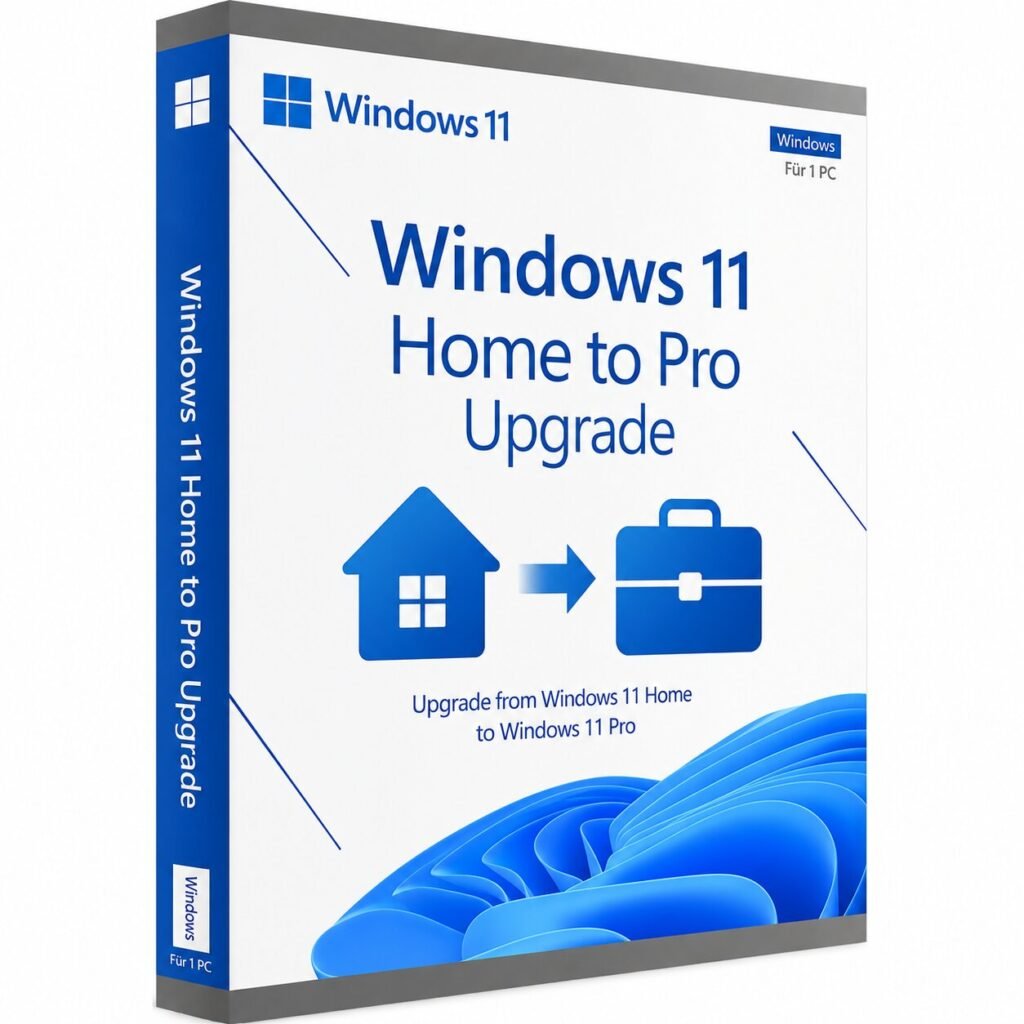
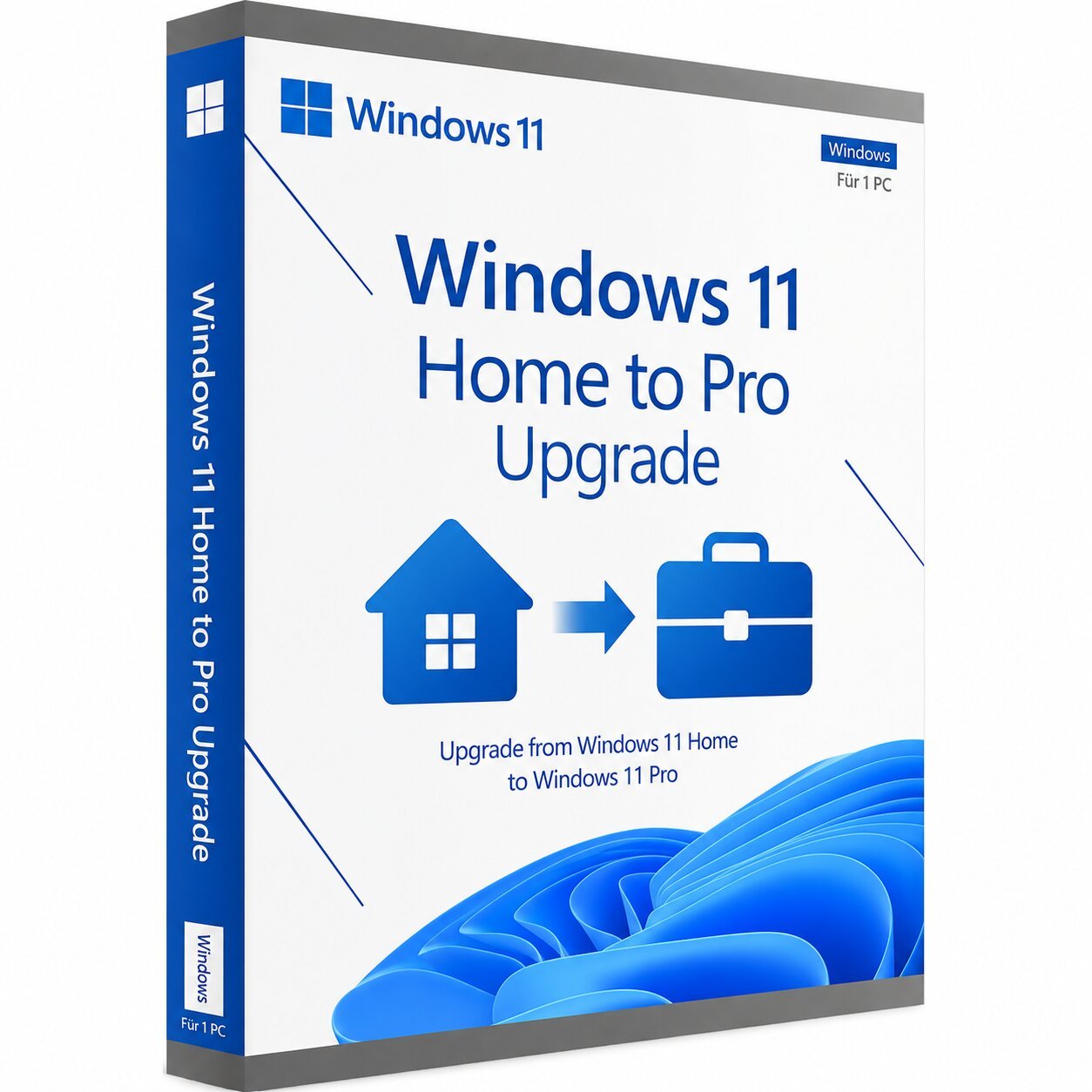
A genuine perpetual Microsoft upgrade license that unlocks the full Windows 11 Pro feature set on your existing Windows 11 Home PC one payment, instant upgrade, no reinstallation required.
Currency:
You'll receive your license key, an official Microsoft download link, and a 1-page activation guide.
Direct Microsoft activation
Email in under 5 minutes
Real humans, any time zone
Full money-back guarantee
The Windows 11 Home to Pro upgrade license is the fastest and most cost-effective way to unlock the complete Windows 11 Pro feature set on a PC that is already running Windows 11 Home without wiping the drive, without reinstalling Windows, without losing your files, applications, or settings, and without purchasing a full Windows 11 Pro license.
If your PC came with Windows 11 Home pre-installed as the majority of consumer laptops and desktops sold in the USA and Canada do and you need BitLocker device encryption, Remote Desktop host capability, Hyper-V virtualization, Windows Sandbox, Group Policy management, domain join, or any of the other Pro-exclusive features that Windows 11 Home does not include, this upgrade license is the correct and most efficient path to getting them.
The upgrade process is straightforward: enter your upgrade key in Windows Settings, Windows contacts Microsoft’s activation servers, and your PC upgrades from Home to Pro in minutes — keeping every application installed, every file in place, and every personal setting intact. No USB drive. No clean install. No data migration. No hours of reinstalling software. Just a product key, a few minutes, and a reboot.
Your genuine Microsoft Windows 11 Home to Pro upgrade key is sent to your email inbox within minutes of purchase and activates directly on Microsoft’s official servers the same upgrade process as buying directly from Microsoft, at a fraction of the retail price.
Windows 11 Home and Pro share the same core operating system the same kernel, the same interface, the same Windows Update mechanism, the same Microsoft Store, and the same hardware support. The differences are entirely in the additional features and capabilities that Pro unlocks on top of the shared foundation. Every feature listed below is available immediately after the upgrade completes.
BitLocker Device Encryption
BitLocker is the most frequently cited reason for upgrading from Windows 11 Home to Pro, and for good reason. BitLocker is Microsoft’s full-volume encryption technology it encrypts the entire contents of your PC’s drive using AES-256 encryption, protecting all your files, documents, credentials, and personal data from unauthorized access if your laptop is lost, stolen, or the drive is removed and connected to another computer.
Windows 11 Home includes a limited form of device encryption that activates only on certain hardware configurations and only when signed in with a Microsoft account. Windows 11 Pro includes full BitLocker with complete administrator control over encryption policies, recovery key management, encryption algorithm selection, and the ability to encrypt drives independently of Microsoft account status. For remote workers carrying laptops with sensitive client data, small business owners protecting financial and customer records, healthcare professionals safeguarding patient information, and anyone whose laptop leaving their possession would be a data security problem, BitLocker in Windows 11 Pro is the correct encryption solution.
Remote Desktop Host Access Your PC from Anywhere
Windows 11 Home can connect to other PCs using Remote Desktop as a client but it cannot host incoming Remote Desktop connections. Windows 11 Pro enables your PC to act as a Remote Desktop host, accepting secure incoming connections from other Windows PCs, Mac computers using Microsoft Remote Desktop, iOS and Android devices, and any other Remote Desktop Protocol-compatible client.
For remote workers who need to access their office PC from home, small business owners who need to connect to their work computer while traveling, IT professionals who support remote PCs in their organization, and power users who want to access their home desktop from any device anywhere, Remote Desktop host capability in Windows 11 Pro is the enabling feature that makes it possible. No third-party remote access software subscription required Remote Desktop is built in, secure, and works over the internet through your router’s port forwarding or a VPN connection.
Hyper-V Virtualization
Windows 11 Pro includes Hyper-V Microsoft’s enterprise-grade hypervisor enabling you to create and run virtual machines directly on your Windows PC without third-party virtualization software. With Hyper-V you can run a full Linux virtual machine alongside Windows for development and testing, run an isolated Windows sandbox environment for testing software, run older Windows versions for application compatibility testing, and run multiple operating systems simultaneously on the same hardware.
For software developers who need Linux environments without dual-booting, IT professionals who test configurations in isolated VMs before deploying to production, security researchers who need isolated environments for malware analysis, and power users who want to run multiple operating systems without additional hardware, Hyper-V in Windows 11 Pro provides enterprise-grade virtualization at no additional cost beyond the Pro upgrade.
Windows Sandbox
Windows Sandbox is a lightweight, isolated Windows environment that launches in seconds and is completely destroyed when closed leaving no trace on your main system. Run suspicious software, open unknown files, test browser extensions, or experiment with application installations in a fully isolated temporary Windows environment that cannot affect your main PC regardless of what you run inside it.
Windows Sandbox in Windows 11 Pro uses hardware-based isolation to ensure that nothing running inside the Sandbox can access or modify files, settings, or processes on the host PC. When you close Sandbox, the entire environment including anything you installed or ran inside it is permanently discarded. For IT professionals evaluating software, security-conscious users who receive unfamiliar files, and developers who need a clean Windows environment for testing, Windows Sandbox is a practical and powerful safety tool that Windows 11 Home simply does not include.
Group Policy Management
Windows 11 Pro includes the Local Group Policy Editor a powerful system management tool that enables fine-grained configuration of hundreds of Windows settings, security policies, application behaviors, and system restrictions that cannot be controlled through the standard Windows Settings interface. Group Policy in Windows 11 Pro enables IT professionals and power users to enforce specific security configurations, control Windows Update behavior, manage application access, configure network settings, restrict user access to specific system features, and apply dozens of other system configuration policies that are not accessible in Windows 11 Home.
For IT professionals managing their own PC or supporting others’ PCs, small business owners who want precise control over how Windows behaves on their work machine, and power users who want to configure Windows beyond what the standard Settings interface exposes, Group Policy in Windows 11 Pro is an indispensable management tool.
Domain Join and Azure Active Directory Join
Windows 11 Pro can join a Windows Active Directory domain enabling the PC to be managed by domain Group Policy, access domain network resources including shared drives and printers, authenticate with domain credentials, and participate in corporate IT management infrastructure. Windows 11 Home cannot join an Active Directory domain.
For employees whose organizations use Active Directory for IT management and who are using a personal or newly purchased PC that needs to join the corporate domain, upgrading from Windows 11 Home to Pro is a prerequisite for domain membership. Windows 11 Pro also supports Azure Active Directory join for Microsoft 365 Business and Enterprise environments enabling managed cloud identity and MDM enrollment for PCs in Microsoft 365-managed organizations.
Windows Update for Business
Windows 11 Pro includes Windows Update for Business a set of Group Policy and MDM controls that give IT administrators and business users precise control over when and how Windows updates are applied. With Windows Update for Business in Windows 11 Pro you can defer feature updates for up to 365 days, defer quality and security updates for up to 30 days, configure active hours to prevent update reboots during working hours, and apply update policies through Group Policy or Microsoft Intune.
For small business owners and IT professionals who need predictable, controlled update behavior on business-critical PCs preventing feature updates from changing workflows unexpectedly, preventing update reboots from interrupting important work, and aligning update schedules with maintenance windows Windows Update for Business in Windows 11 Pro provides the control that Windows 11 Home’s automatic update model does not.
Assigned Access and Kiosk Mode
Windows 11 Pro includes Assigned Access the capability to lock a PC down to run a single application in kiosk mode, presenting a single app full screen to the user and preventing access to the rest of Windows. For retail businesses setting up a customer-facing information kiosk, healthcare organizations running a patient check-in terminal, and any organization that needs a locked-down single-purpose Windows device, Assigned Access in Windows 11 Pro provides that capability without third-party kiosk software.
Microsoft Intune and MDM Enrollment
Windows 11 Pro supports enrollment in Mobile Device Management systems including Microsoft Intune enabling centralized management of the PC through a cloud-based MDM platform. For organizations using Microsoft 365 Business Premium or Intune standalone for device management, Windows 11 Pro MDM enrollment enables remote PC management, application deployment, security policy enforcement, BitLocker key escrow to Azure Active Directory, and compliance reporting from the Microsoft Intune admin center. Windows 11 Home does not support MDM enrollment.
Encrypting File System
Windows 11 Pro includes the Encrypting File System a file-level encryption capability that allows individual files and folders to be encrypted independently of BitLocker’s full-volume encryption, using per-file encryption certificates tied to the user account. EFS provides an additional layer of file-level protection for specific sensitive files and folders on a BitLocker-encrypted drive, and enables encrypted file sharing between specific user accounts on multi-user PCs.
Remote Desktop and Remote Assistance Hosting
Beyond standard Remote Desktop, Windows 11 Pro includes full Remote Assistance hosting capability enabling IT professionals and support staff to remotely view and control a Pro PC with the user’s permission for troubleshooting and technical support purposes. For small businesses where the owner or an IT support provider remotely assists employees, Remote Assistance in Windows 11 Pro provides a built-in secure remote support mechanism without requiring third-party remote support software.
BitLocker full device encryption: Pro only Home has limited device encryption with no administrative control
Remote Desktop host (accept incoming connections): Pro only Home can only connect as a client, not host
Hyper-V virtualization: Pro only not available in Home
Windows Sandbox: Pro only not available in Home
Local Group Policy Editor: Pro only not available in Home
Active Directory domain join: Pro only Home cannot join a domain
Azure Active Directory join: Pro only not available in Home
Windows Update for Business (deferred updates): Pro only Home uses automatic updates only
Assigned Access / Kiosk Mode: Pro only not available in Home
Microsoft Intune / MDM enrollment: Pro only not available in Home
Encrypting File System (EFS): Pro only not available in Home
All other Windows 11 features: Identical in both Home and Pro same interface, same apps, same hardware support, same Microsoft Store, same Windows Hello, same gaming features, same Android app support
Remote workers who need to access their office PC from home professionals who work from home and need to remotely connect to their office Windows PC to access files, run applications, and work as if they were sitting at their desk. Remote Desktop host in Windows 11 Pro enables this without any third-party remote access subscription — just a Pro upgrade and a standard Remote Desktop client on the connecting device.
Small business owners and freelancers who need BitLocker entrepreneurs, consultants, lawyers, accountants, real estate professionals, and other small business operators who carry laptops containing client data, financial records, contracts, and sensitive business information, where the theft or loss of that laptop without encryption would be a serious data breach and business liability. BitLocker full device encryption in Windows 11 Pro protects all of that data with strong encryption that renders the drive unreadable without the recovery key.
Software developers who need Hyper-V developers who need to run Linux virtual machines for backend development and testing, who want isolated Windows environments for testing deployments and configurations, or who need to run legacy operating systems for compatibility testing all without leaving their main Windows PC or purchasing additional hardware. Hyper-V in Windows 11 Pro delivers enterprise-grade virtualization built directly into the OS.
IT professionals managing their own or others’ PCs systems administrators, IT support professionals, managed service providers, and technically skilled individuals who need Group Policy management for fine-grained Windows configuration, domain join for corporate network integration, Windows Update for Business for controlled update scheduling, and Remote Desktop hosting for remote PC management and support.
Employees whose organizations require domain join workers whose company IT department requires PCs to be joined to the Active Directory domain for security policy enforcement, network resource access, and centralized management, where the employee’s PC currently runs Windows 11 Home and domain join requires a Pro upgrade before enrollment is possible.
Security-conscious users who want Windows Sandbox individuals who regularly receive unknown files, evaluate unfamiliar software, test browser extensions, or want an isolated environment for potentially risky activities where Windows Sandbox in Windows 11 Pro provides a fully isolated, self-destroying temporary Windows environment for safe testing without risk to the main system.
Organizations deploying Microsoft 365 Business with Intune small and medium businesses running Microsoft 365 Business Premium or Intune standalone for device management, where Windows 11 Pro MDM enrollment is required to apply security policies, deploy applications, enforce BitLocker, and manage PCs through the Intune admin center.
Power users who want full control over Windows technically skilled individuals who want the Local Group Policy Editor for advanced Windows configuration, Windows Update for Business for controlled update scheduling, and the complete set of Pro features for a maximally configured and controlled Windows 11 experience.
Step 1 After checkout at MMKeys, your Windows 11 Home to Pro upgrade key arrives in your email inbox within minutes of payment confirmation. Check your spam folder if it does not appear in your primary inbox within five minutes.
Step 2 On your Windows 11 Home PC, open the Start menu and go to Settings.
Step 3 Navigate to System > Activation.
Step 4 Under Upgrade your edition of Windows, select Change product key.
Step 5 Enter your 25-character Windows 11 Pro upgrade key and click Next.
Step 6 Windows contacts Microsoft’s activation servers, verifies your upgrade key, and begins the upgrade process. The upgrade downloads a small package and applies it to your current Windows installation no full OS download or reinstallation is required.
Step 7 When prompted, click Restart Now. After the reboot, your PC is running Windows 11 Pro all your files, applications, and settings are exactly as you left them, with every Pro feature now unlocked and available.
The entire process typically takes under fifteen minutes including the reboot. Full step-by-step upgrade instructions are included with every MMKeys order, and our support team is available 24/7 if you need any assistance at any stage.
Your PC must currently be running Windows 11 Home to use this upgrade license. Any PC that is already running Windows 11 Home meets the requirements for the Home to Pro upgrade no additional hardware is required beyond what Windows 11 Home already runs on.
For reference, the standard Windows 11 requirements that your PC already meets are:
Is this a genuine Microsoft Windows 11 Pro upgrade license key? Yes. Every key sold by MMKeys is an authentic, unused Microsoft product license. It activates directly on Microsoft’s official activation servers there are no shared keys, no workarounds, and no grey-market codes of any kind. Your upgrade key is a genuine Microsoft license that permanently upgrades your PC from Windows 11 Home to Windows 11 Pro.
Will I lose my files, apps, or settings during the upgrade? No. The Home to Pro upgrade is an in-place upgrade that preserves all your files, installed applications, desktop layout, browser history and bookmarks, user account settings, and personal data exactly as they were before the upgrade. You do not need to back up and restore anything. The upgrade process simply unlocks the Pro features on your existing Windows 11 installation.
Do I need to download Windows 11 Pro separately? No. The Pro upgrade is built into Windows 11 Home the Pro features are already present in the installation but are locked until a valid Pro license is detected. Entering the upgrade key in Windows Settings unlocks those features in place without downloading a new operating system or reinstalling anything.
Can I use this upgrade key on multiple PCs? No. The upgrade key is a single-use license that activates on one PC the PC where you enter the key. Once activated, the license is tied to that PC’s hardware. If you need to upgrade multiple PCs, you need one upgrade key per PC.
Is the upgrade permanent? Yes. Once you upgrade from Windows 11 Home to Pro using a genuine Microsoft license key, the activation is permanent. Your PC remains activated as Windows 11 Pro indefinitely through Windows Updates, hardware driver updates, and the full support lifecycle of Windows 11 Pro. There are no renewal fees and no expiration dates.
What happens if I replace hardware components on my PC after upgrading? Minor hardware changes such as adding RAM or replacing a storage drive do not typically affect Windows activation. Significant changes such as replacing the motherboard may require reactivation. If your PC loses activation after a hardware change, contact MMKeys support and we will assist you with the reactivation process at no cost.
Will this upgrade key work on a PC that came with Windows 11 Home OEM? Yes. The upgrade key works on PCs running Windows 11 Home regardless of whether the original Windows license was OEM, retail, or digital — as long as the PC is currently running Windows 11 Home and is connected to the internet for activation.
Does upgrading to Windows 11 Pro affect gaming performance? No. Windows 11 Pro and Home share the same gaming stack DirectX 12 Ultimate, DirectStorage, Auto HDR, Xbox Game Pass integration, and all Windows 11 gaming features are identical between the two editions. The Pro upgrade adds management and security features without changing gaming performance or compatibility in any way.
Can I downgrade back to Windows 11 Home after upgrading? Downgrading from Pro back to Home after a successful upgrade requires a clean reinstall of Windows 11 Home using Microsoft’s installation media. The upgrade itself is not reversible through Windows Settings it is a one-way permanent upgrade. This is not a concern for the vast majority of users who upgrade intentionally.
How long does delivery take? Most MMKeys orders are delivered within five minutes of payment confirmation, 24 hours a day, 7 days a week. Your email contains your upgrade key, step-by-step upgrade instructions, and everything you need to complete the upgrade in under fifteen minutes.
What if my key does not work? Contact MMKeys support at any time. We stand behind every key we sell and will resolve any activation issue or replace your key at no cost. Our support team is available 24 hours a day, 7 days a week. CONTACT US
| 5 star | 0% | |
| 4 star | 0% | |
| 3 star | 0% | |
| 2 star | 0% | |
| 1 star | 0% |
Sorry, no reviews match your current selections