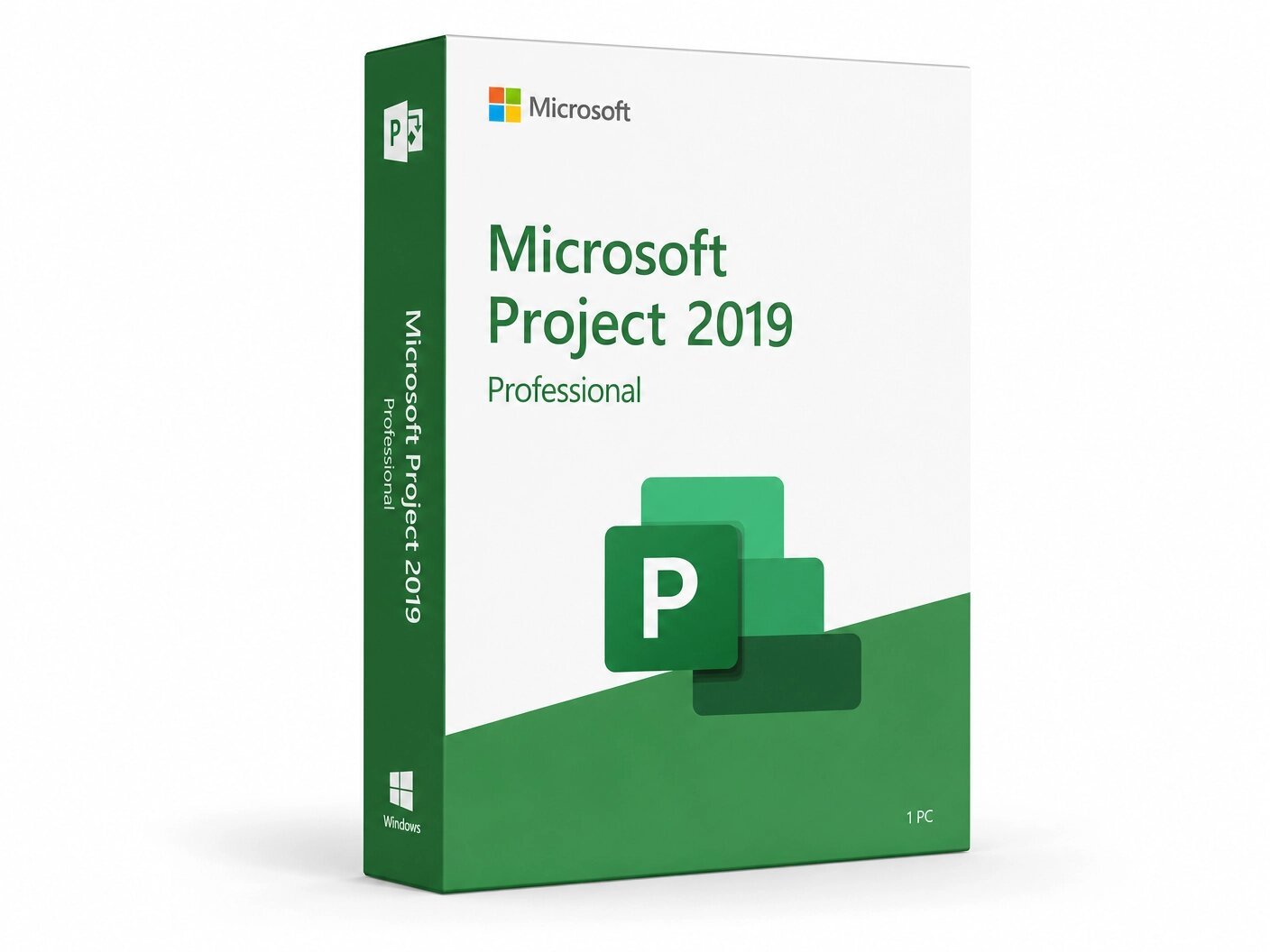
A genuine perpetual Microsoft license for professional project management, scheduling, and team collaboration on one Windows PC.
Currency:
You'll receive your license key, an official Microsoft download link, and a 1-page activation guide.
Direct Microsoft activation
Email in under 5 minutes
Real humans, any time zone
Full money-back guarantee
Microsoft Project 2019 Professional is the perpetual desktop edition of Microsoft’s industry-standard project management application, designed for professional project managers and organizations that need a powerful, reliable, and subscription-free scheduling tool that they own outright.
It is the version of Microsoft Project that replaced Project 2016, bringing a more refined interface, improved task linking, enhanced timeline capabilities, and tighter integration with the modern Microsoft collaboration stack all in a one-time purchase that installs on one Windows PC and never expires.
For organizations and individuals who manage projects of real complexity multiple phases, dependencies between dozens or hundreds of tasks, resources whose availability affects the schedule, and stakeholders who need regular progress reports Microsoft Project 2019 Professional is the tool that handles all of it in a single application without requiring a browser, a cloud account, or a monthly subscription. You install it, you own it, and it works on your PC for the life of the machine.
This is a perpetual, one-time purchase. Pay once and own it permanently on one Windows PC — no subscription, no monthly fees, no annual renewal, no expiry. Your genuine Microsoft Project 2019 Professional license key is delivered to your email within minutes of purchase and activates directly through Microsoft’s official servers using your Microsoft account.
Important: Microsoft Project 2019 Professional is a Windows-only application. It is not compatible with macOS, Android, or Chromebook. It requires Windows 10 it will not install on Windows 7 or Windows 8.1.
Microsoft Project has been the benchmark for desktop project management software for over three decades. It is the application that professional project managers in construction, IT, engineering, manufacturing, professional services, and government reach for when they need to plan and control a project with enough complexity that a spreadsheet cannot do the job when you need real dependency logic that recalculates the schedule automatically, resource assignment and leveling that accounts for each team member’s availability and workload, baseline tracking that shows you precisely how much the schedule and cost have drifted from the original plan, and reports that communicate project status to stakeholders without requiring hours of manual formatting.
Project 2019 Professional is the latest perpetual release to use Microsoft account activation, making it straightforward to install, reinstall, and transfer to a new PC compared to the volume-licensed LTSC editions.
It includes the full set of enterprise project management capabilities in the Professional edition Gantt charts, resource management, Team Planner, Resource Engagement, Project Online and Project Server 2019 integration, Skype for Business communication within the project plan, SharePoint task synchronization, and timesheet submission in a locally installed desktop application that works fully offline once activated.
Gantt Charts and Automated Scheduling The Gantt chart is where project managers spend most of their time in Microsoft Project, and the 2019 version delivers the most refined Gantt experience in the perpetual desktop line to that point. Define tasks, set durations, and establish dependencies finish-to-start, start-to-start, finish-to-finish, start-to-finish — with lead and lag times, and Project’s scheduling engine recalculates start and finish dates for every downstream task automatically whenever anything upstream changes.
This automated scheduling is the core reason project managers choose Project over spreadsheets: the moment a task slips or a resource becomes unavailable, the entire downstream schedule updates in seconds rather than requiring manual recalculation across dozens of rows and columns.
For project managers who prefer to maintain direct control over specific dates regardless of dependency logic, Project 2019 also supports manually scheduled tasks alongside automatically scheduled ones.
Manually scheduled tasks display exactly the dates you type, even if they conflict with their predecessors, while automatically scheduled tasks continue to recalculate normally around them. This hybrid approach is particularly useful for tasks with fixed contractual dates, external milestones, or commitments that cannot move regardless of what the rest of the schedule does.
Improved Task Linking with Drop-Down Predecessor Selection One of the most practically useful improvements in Project 2019 over earlier versions is the redesigned task linking interface. Previously, linking tasks required remembering or looking up the task ID number of the predecessor and typing it into the Predecessors column a minor but persistent source of errors, particularly in large projects with hundreds of tasks where IDs are not easily memorable.
In Project 2019, selecting a cell in the Predecessors column and clicking the drop-down arrow opens a list of all tasks in the project, displayed in the same hierarchy and order as the project plan itself. Scroll to the task you want to link to and check the box. The same drop-down is available in the Successors column. For project managers building or editing complex dependency networks, this change meaningfully reduces the time and error rate involved in task linking.
Task Summary Name Field In projects with long task lists where multiple tasks share similar names across different phases or work packages, identifying which summary task a given task belongs to requires either scrolling up through the hierarchy or expanding and collapsing the outline.
Project 2019 introduces the Task Summary Name field a read-only column that displays the name of the immediate parent summary task for every task in the list, regardless of the current outline view. Add this column to your Gantt chart and you can see at a glance that “Design Review” belongs to “Phase 2 Architecture” rather than “Phase 4 Testing,” without navigating the outline. For large projects where task names repeat across phases, this is a significant usability improvement.
Multiple Timelines Project 2019 Professional supports multiple simultaneous timeline bars in the Timeline view, allowing project managers to create layered views of the project at different levels of detail. Build a high-level executive summary timeline showing only major milestones and phase boundaries, a mid-level management timeline showing workstream progress, and a detailed delivery timeline showing individual sprint or work package dates all in the same Timeline view, side by side. Each timeline bar is independently configurable:
add different tasks, apply different formatting, and display different date ranges. Timelines export cleanly to PowerPoint and can be embedded in Word reports for stakeholder communications, making it straightforward to produce visually consistent progress presentations directly from your live project data.
Task Path Highlighting Understanding the dependency relationships of a specific task in a dense Gantt chart with hundreds of rows requires more than highlighting the critical path in red. Task Path highlighting in Project 2019 lets you select any task and immediately see its entire dependency network color-coded on the Gantt chart:
predecessor tasks highlighted in one color, successor tasks in another, driving predecessors the specific predecessors that are directly controlling the selected task’s start date in a third color, and driven successors the tasks whose dates would change if the selected task moved in a fourth.
This four-color dependency visualization makes it immediately clear which tasks are feeding into a bottleneck, which are affected by a delay, and which have float that could absorb a slip without affecting downstream work.
Baseline Tracking and Variance Analysis Set a project baseline at the point of sign-off a snapshot of the approved schedule, resource plan, and budget and then track actual progress against it throughout the project lifecycle. Project 2019 Professional stores up to eleven baselines per project file, allowing project managers to capture the schedule at multiple approval points initial baseline, post-change-request baseline, recovery plan baseline and compare actual progress against any of them.
Baseline versus actual start dates, finish dates, durations, work, and cost are all tracked and can be displayed side by side in the Gantt chart and in dedicated variance tables, making schedule and cost drift visible at the task level, work package level, and project level simultaneously.
Resource Management and Team Planner Assign resources to tasks from the centralized resource pool, define each resource’s standard and overtime rates, set their maximum availability as a percentage of full time, and apply individual working calendars that reflect their actual schedules part-time arrangements, shifts, planned leave.
Project calculates the total work demand on each resource across the project and flags over-allocations days or weeks where a resource is assigned more work than their availability allows in the Resource Sheet and Resource Usage views.
The Resource Leveling tool resolves over-allocations automatically by delaying tasks within their available float or, if necessary, extending the project end date, according to the leveling constraints you define.
The Team Planner view, exclusive to the Professional edition, provides a visual drag-and-drop resource management interface that shows every resource as a row and every task assignment as a bar spanning its scheduled duration. Over-allocations appear as overlapping bars that are immediately visible without reading utilization percentages. Drag an assignment from an over-allocated resource to an available one directly on the Team Planner and Project updates the schedule and resource assignments accordingly.
For project managers who manage resource allocation as a primary concern who need to ensure work is distributed across team members efficiently and that no one is carrying an unsustainable workload the Team Planner is one of the most practical views in the application.
Resource Engagement In organizations where project managers request resources from a resource pool managed centrally by resource managers or functional leads, the Resource Engagement feature in Project Professional 2019 provides a formal request-and-approval workflow.
Project managers submit engagement requests specifying which resource they need, for what period, and at what percentage of availability. Resource managers review requests against current commitments across all projects in the portfolio and approve, reject, or propose alternatives through Project Online or Project Server. Once an engagement is approved, the resource is confirmed in the project plan.
This workflow brings structure to the resource allocation process in organizations where multiple project managers compete for shared resources, replacing the informal conversations and email chains that often lead to resource conflicts and schedule surprises.
Built-In Visual Reports Generate professional reports directly from your live project data without exporting to Excel or building presentations manually.
Project 2019 Professional includes a library of pre-built visual reports Burndown, Resource Overview, Cost Overview, Project Overview, Upcoming Tasks, Work Overview, and more each rendered as a formatted dashboard with charts, tables, and summary statistics pulled directly from the project file.
Every report is customizable through a familiar interface: adjust the date range, filter by resource or task group, add or remove data fields, and modify chart types and visual formatting. Reports can be exported to PDF for distribution or copied into PowerPoint and Word for inclusion in stakeholder presentations.
Project Online and Project Server 2019 Integration The defining capability of the Professional edition over Standard is its integration with Microsoft’s enterprise project portfolio management platforms.
Project Professional 2019 connects to both Project Online Microsoft’s cloud-based portfolio management service and Project Server 2019 the on-premises equivalent allowing project managers to publish their schedules to a centralized repository where portfolio managers have visibility across all active projects simultaneously.
Team members receive task assignments through the web-based Project Online interface and submit progress updates through a browser without needing Project installed on their local machine. Resource managers see demand across the entire portfolio and approve resource engagement requests.
Executives access portfolio dashboards showing status, budget, and schedule health across all projects without opening a single MPP file. For organizations running a PMO or managing a meaningful portfolio of concurrent projects, this integration is the reason the Professional edition exists.
SharePoint Task Synchronization Synchronize your Project 2019 Professional schedule with a SharePoint task list, enabling team members who do not have Project installed to view tasks, update their status, and log progress through the SharePoint interface. Changes made in SharePoint sync back to the Project file automatically.
For smaller organizations or project teams where only the project manager holds a Project license but team members need to interact with the schedule, SharePoint task sync provides a lightweight collaboration layer without requiring additional Project licenses.
Skype for Business Integration Project 2019 Professional includes integrated Skype for Business presence indicators and communication tools directly within the project plan. Hover over a resource’s name in the Gantt chart or resource views and see their current availability status.
Click to start an instant message, voice call, or video call without switching to a separate application. For project managers who spend significant time coordinating with team members about task status, blockers, and scheduling changes, the ability to initiate a conversation from directly within the project plan reduces context switching and keeps communication in the flow of project management work.
Pre-Built Templates and Getting Started Experience Project 2019 Professional includes a library of pre-built project templates covering common project types software development, construction, marketing campaigns, event planning, new product introduction, and more that provide a structured starting point with appropriate task hierarchies, typical milestones, and standard work breakdown structures.
The Getting Started screen that launches with a new project walks first-time users through the fundamental capabilities creating tasks, linking dependencies, assigning resources, building a timeline reducing the learning curve for project managers new to Microsoft Project or upgrading from an older version.
Task Inspector The Task Inspector panel opens alongside any selected task and explains in plain language why that task is scheduled when it is which predecessor is driving the start date, whether a resource constraint or calendar restriction is affecting timing, and whether there are alternative arrangements that would allow earlier scheduling.
For project managers troubleshooting why a task is scheduled later than expected or trying to understand the scheduling logic in a project file inherited from another manager, the Task Inspector surfaces the scheduling reasoning that would otherwise require manual analysis of dependency tables and resource calendars.
Microsoft Project 2019 Professional is the right tool for any project manager or organization whose work requires scheduling depth, resource management, and stakeholder reporting that spreadsheets and lightweight task management apps cannot deliver and who want to own their software outright rather than pay a recurring subscription.
Project managers in construction, engineering, and infrastructure managing multi-phase projects with complex task dependencies, resource constraints across trades and subcontractors, and contractual milestone commitments where baseline tracking and schedule variance reporting are fundamental project management requirements.
IT project managers and technical program managers delivering software development, infrastructure, or digital transformation programs where projects involve multiple workstreams, external vendor dependencies, and formal governance reporting to steering committees and executive sponsors.
Program management offices in organizations running multiple simultaneous projects, where connecting Project Professional to Project Online or Project Server 2019 enables centralized portfolio visibility, cross-project resource management, and standardized reporting across the entire project portfolio.
Professional services firms, consultancies, and agencies where project schedules are the basis for resource planning, client billing, and contractual deliverable management, and where formal project documentation approved baselines, progress reports, earned value analysis is part of the client engagement.
Organizations already running Microsoft Project 2013 or Project 2016 that want to move to the 2019 version for the improved task linking, the Task Summary Name field, the enhanced timeline capabilities, and better integration with current Microsoft 365 and SharePoint environments without moving to a subscription model.
Individual project managers in any industry who need a professional scheduling tool for their own project management work, want to own it permanently, and do not want to pay monthly fees for software they use continuously over years.
Project Standard 2019 covers the core desktop project management workflow for a single user working independently on individual project files. It includes the Gantt chart, automatic scheduling, multiple timelines, baseline tracking, built-in reports, and the task linking improvements introduced in the 2019 version.
It is the right choice for a project manager who manages their own projects without needing to connect to a centralized portfolio system or coordinate with a resource manager overseeing a shared resource pool.
Project Professional 2019 adds the collaboration and enterprise features on top of Standard: full integration with Project Online and Project Server 2019, the Team Planner view for visual resource management, the Resource Engagement workflow for requesting and approving resources from a central pool, SharePoint task synchronization, Skype for Business communication integration, timesheet submission, and the ability to connect to and contribute to an organization-wide project portfolio managed through Project Server or Project Online.
If any of those capabilities are required particularly Project Server or Project Online connectivity Professional is the required edition.
Project 2021 and Project LTSC 2024 Professional are the successors to Project 2019. The 2021 version introduced the Task Board view and further improvements to task scheduling and the user interface. The LTSC 2024 version adds performance optimizations for large projects, an enhanced timeline view, better integration with Office 2024 LTSC, and faster report generation.
Project 2019 Professional remains a fully capable and professionally credible project management tool. It runs on Windows 10 and Windows 11, receives security updates from Microsoft through October 2025 under extended support, and connects to Project Online and Project Server 2019 for organizations running those platforms. For buyers who need a perpetual Project license at the most accessible price point, or whose organization standardizes on Project 2019 for compatibility with existing Project Server infrastructure, Project 2019 Professional remains a sound choice.
Step 1 — After purchase at MMKeys, your license key arrives in your email inbox within minutes. Check your spam folder if it does not appear in your primary inbox.
Step 2 — Go to setup.office.com and sign in with your Microsoft account. If you do not have one, create a free account at account.microsoft.com this takes less than two minutes and is required for activation.
Step 3 — Enter your 25-character product key to associate the Project 2019 Professional license with your Microsoft account.
Step 4 — Click Install to download the official Microsoft Project 2019 Professional installer and run it on your PC. Installation typically takes between 5 and 15 minutes depending on your internet speed.
Step 5 — Once installation is complete, open Microsoft Project 2019 Professional. It activates automatically using your Microsoft account credentials. You are ready to start managing your projects.
Full step-by-step installation and activation instructions are included with every MMKeys order. Our support team is available 24 hours a day, 7 days a week if you need assistance at any stage.
Is this a genuine Microsoft Project 2019 Professional license? Yes. Every key sold by MMKeys is an authentic Microsoft product license that activates directly on Microsoft’s official servers at setup.office.com. There are no shared keys, workarounds, or grey-market codes of any kind.
Does Microsoft Project 2019 Professional require a Microsoft account? Yes. Unlike the LTSC editions which use volume activation by phone, Project 2019 Professional activates through a Microsoft account at setup.office.com. A Microsoft account is free to create and takes under two minutes to set up if you do not already have one.
What is the difference between Project Professional and Project Standard? Standard covers the core desktop scheduling workflow for a single user. Professional adds Project Online and Project Server integration, the Team Planner, Resource Engagement, SharePoint task sync, Skype for Business communication tools, and timesheet submission. If you need to connect to a centralized portfolio management platform, Professional is required.
Is Microsoft Project included in Microsoft 365? No. Microsoft Project is not included in any Microsoft 365 or Office 365 subscription at any tier. It is always a separate purchase.
Does it work on Windows 11? Yes. Microsoft Project 2019 Professional is compatible with both Windows 10 and Windows 11.
Does it work offline? Yes. Once installed and activated, Microsoft Project 2019 Professional works fully without an internet connection. Internet is required only for the initial download and Microsoft account activation.
Can I reinstall Project if I get a new PC or reformat my current one? Yes. Because the license is tied to your Microsoft account, you can reinstall Project 2019 Professional on any new or reformatted Windows PC by signing into your Microsoft account at setup.office.com and downloading it again without entering your key a second time.
Can I open Project 2013 or 2016 files in Project 2019? Yes. Project 2019 Professional is fully backward compatible with project files created in all previous versions of Microsoft Project, including the MPP format used by Project 2013 and 2016.
How soon will I receive my key after purchase? Most MMKeys orders are delivered within minutes of payment confirmation, 24 hours a day, 7 days a week. Your email includes the license key and activation instructions.
What if my key does not activate? Contact MMKeys support at any time. Every license sold by MMKeys is backed by our lifetime warranty and money-back guarantee. If your key does not activate for any reason, we will resolve the issue or provide a replacement at no cost. CONTACT US
Sorry, no reviews match your current selections