




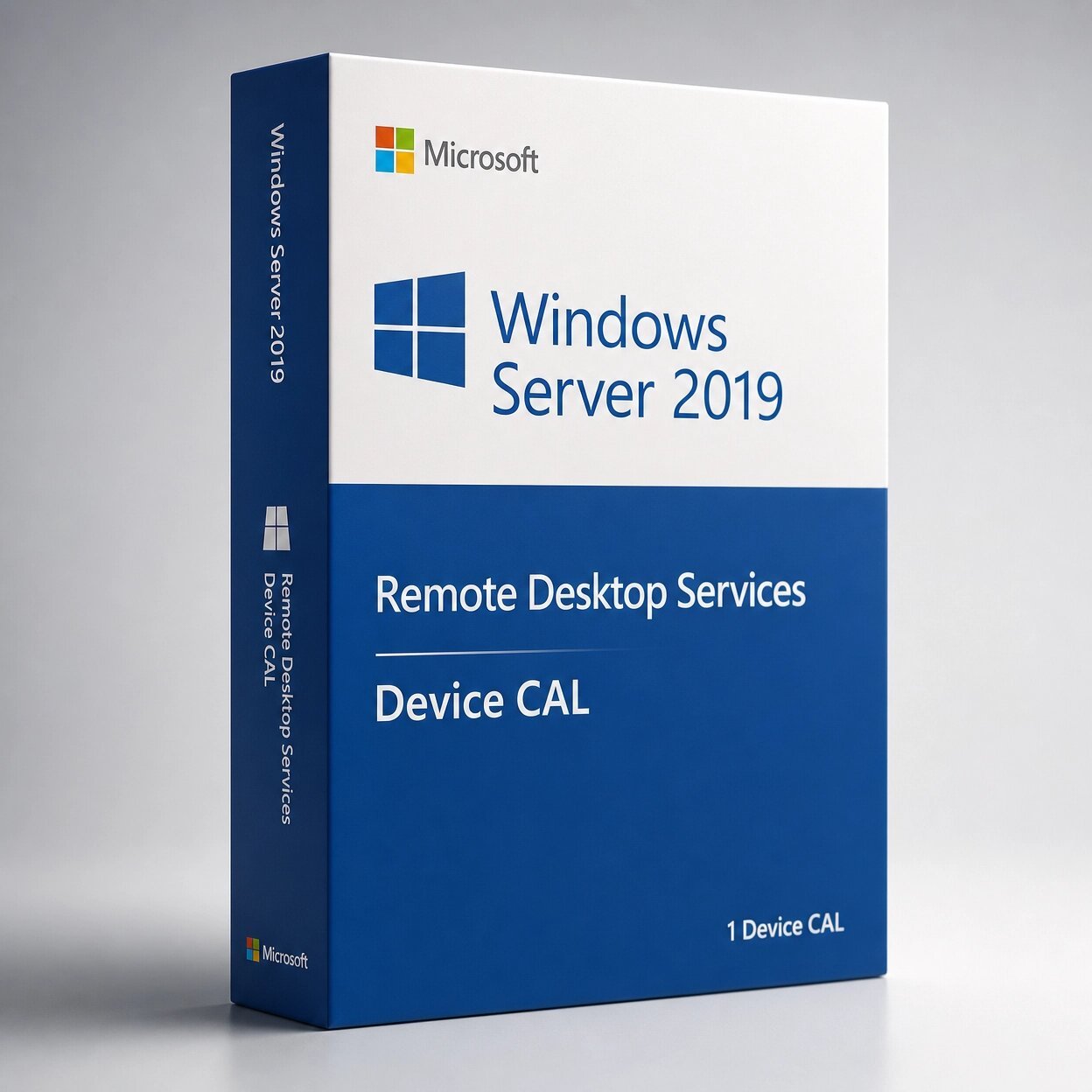
Windows Server 2019 Remote Desktop Services (RDS) Device
CAD $ 72.00
A genuine Microsoft license granting one device unlimited user access to Windows Server 2019 Remote Desktop Services.
- Device-based license multiple users, one device
- Full Microsoft licensing compliance for Windows Server 2019 RDS
- Must be used alongside a base Windows Server CAL
- Delivery: License key sent by email within minutes
- Lifetime license one payment, forever
- Guarantee: 100% satisfaction & money-back guarantee
Genuine Microsoft license — activated on Microsoft’s own servers
- Instant delivery: your product key, official download link and step-by-step activation guide arrive by email within minutes of payment — 24/7, USA & Canada.
- Lifetime license: pay once, activate forever. No subscription, no renewal fees, no expiry.
- 100% genuine & legal: every key is sourced through authorized supply chains and verified before it reaches your inbox.
- Money-back guarantee: 30-day refund policy plus a lifetime activation warranty — if a key ever fails, we replace it free.
- Secure checkout: Visa, Mastercard, Apple Pay, Google Pay, PayPal and Interac e-Transfer.
- Real human support: licensing and activation help across North American time zones.
How it works: 1) Add to cart and pay securely → 2) Check your inbox for the key and download link → 3) Install and activate with the included guide. Need help? See our activation guides or contact us.
Windows Server 2019 Remote Desktop Services (RDS) Device CAL – Genuine License
Buy Windows Server 2019 RDS Device CAL | Fast Email Delivery | USA & Canada
A Windows Server 2019 Remote Desktop Services Device CAL (Client Access License) is the Microsoft-required license that legally entitles a specific physical device to connect to Remote Desktop Services on a Windows Server 2019 host — for any number of users who share that device, as many times as needed.
If your organization uses Remote Desktop Services to deliver hosted desktops, published applications, or centralized remote access on Windows Server 2019, every device used to make those connections requires both a base Windows Server 2019 User or Device CAL and a Windows Server 2019 RDS Device CAL. The RDS Device CAL is the additional license that specifically covers the Remote Desktop Services session initiated from that device — it is a legal requirement enforced during Microsoft licensing audits and cannot be substituted with any other license type.
The license key delivered by MMKeys is a genuine Microsoft RDS Device CAL for Windows Server 2019, delivered to your email inbox within minutes of purchase, backed by our lifetime warranty and money-back guarantee.
What Is a Windows Server 2019 RDS Device CAL?
Remote Desktop Services is the Windows Server role that enables multiple users to connect simultaneously to a Windows Server 2019 host and run applications or full desktop sessions in a centralized, server-hosted environment. It is the platform behind virtual desktop infrastructure, remote application delivery, thin-client computing, shared workstation environments, kiosk terminals, and branch office connectivity to centralized server resources.
Microsoft licenses access to Remote Desktop Services through Client Access Licenses. Without valid RDS CALs installed and issued through an RDS License Server, Windows Server 2019 operates in a grace period of 120 days before Remote Desktop Services begins refusing connections from devices beyond the two built-in administrative sessions that are always available for server management purposes.
A Device CAL licenses a specific physical endpoint — not a person. One Windows Server 2019 RDS Device CAL covers a single device from which any number of users may connect to Remote Desktop Services throughout the day. There is no limit on how many people use that licensed device, and no limit on how many sessions originate from it across different users and different shifts. The license travels with the device, not with the individuals who use it.
This makes the Device CAL the correct and most cost-effective choice for shared workstations, kiosk terminals, call center stations, manufacturing floor endpoints, classroom computers, and any environment where multiple users take turns accessing Remote Desktop Services from the same physical machine — and where the total number of devices is smaller than the total number of users who need access.
What Is Remote Desktop Services and Why Does It Require CALs?
Remote Desktop Services in Windows Server 2019 is built around several integrated role services that together deliver a complete remote access and application delivery infrastructure for organizations of all sizes.
The Remote Desktop Session Host is the core role service that hosts the actual user desktop sessions and published RemoteApp application sessions that clients connect to. Session Host servers are where applications execute and where user sessions are maintained — they represent the shared compute resource that RDS CALs are required to license. In shared terminal environments, dozens or even hundreds of simultaneous user sessions may run on one or more Session Host servers, each session consuming server resources and representing a separate user or device access that must be covered by a valid CAL.
The Remote Desktop Connection Broker manages user connections across multiple Session Host servers in a Session Host farm, directing new connections to the least-loaded available Session Host, reconnecting users to their existing disconnected sessions when they reconnect, and providing the session management intelligence that makes multi-server RDS deployments function as a unified service. Connection Broker is a required component in production multi-Session-Host RDS deployments.
The Remote Desktop Gateway provides secure external access to internal Remote Desktop Services resources from outside the corporate network over HTTPS, enabling remote and mobile users to connect to Session Hosts, published applications, and virtual desktops without requiring a traditional VPN connection. Gateway is the component that makes work-from-home RDS access and remote branch connectivity practical for organizations that cannot or prefer not to deploy VPN infrastructure for every remote user.
The Remote Desktop Licensing role manages and issues CAL tokens to connecting client devices and tracks device CAL consumption against the installed CAL inventory. In a Per Device licensing model, the License Server issues a temporary CAL to each new device on its first connection and upgrades that temporary CAL to a permanent assigned CAL on subsequent connections, tracking which devices have been issued permanent CALs and how many CALs remain available in the installed inventory.
Microsoft requires RDS CALs because Remote Desktop Services fundamentally changes the economics of software licensing — enabling a single server to serve many simultaneous users running the same applications, which without per-access licensing would undermine the software licensing model that underpins Microsoft’s product ecosystem.
RDS Device CAL vs. RDS User CAL — Which Do You Need?
Windows Server 2019 Remote Desktop Services can be licensed either per device or per user. The two CAL types cannot be mixed on the same RDS License Server — an organization must select one model for a given RDS deployment and apply it consistently across all connecting clients.
RDS Device CAL licenses a specific physical device. Any number of users may connect to Remote Desktop Services from that licensed device. One CAL per endpoint, regardless of how many individuals use it across the day, the week, or across shift rotations. This is the right choice for shared workstations in call centers, kiosk terminals at service desks or reception areas, manufacturing floor terminals, classroom computers used by rotating students, clinical workstations shared by multiple clinicians across shifts, and any situation where multiple users share a device and the device count across the organization is lower than the user count needing RDS access.
RDS User CAL licenses a named individual. That person may connect from any number of devices. One CAL per person, regardless of how many endpoints they use to connect. This is the right choice for remote workers who connect from home and the office, employees who carry laptops and also use office workstations, mobile workers who connect from multiple devices and locations, and environments where users are more mobile than the devices they use — or where the total number of users needing RDS access is smaller than the total number of devices from which connections originate.
The economic decision rule is straightforward: count the total number of devices that will initiate RDS connections and count the total number of users who need RDS access. License whichever count is smaller to minimize your total CAL investment. For shared terminal environments, kiosk deployments, call center floors, and manufacturing environments, Device CALs are almost always the correct and more cost-effective choice. For knowledge worker environments with flexible device usage, User CALs are typically more economical.
What Is New in Windows Server 2019 RDS Relevant to Device CAL Deployments
Windows Server 2019 Remote Desktop Services delivers improvements across security, transport, manageability, and Azure integration that benefit shared-device and thin-client RDS deployments directly.
Strengthened Default Security for Shared Device Environments
Windows Server 2019 ships with a meaningfully stronger default security posture than Windows Server 2016, and these improvements are particularly relevant in shared-device RDS deployments where multiple users authenticate to the same Session Host from the same physical terminal across the same day.
SMB1 is disabled by default in Windows Server 2019, removing the most commonly exploited file sharing vulnerability that enabled lateral movement across environments in several high-profile ransomware campaigns. The default TLS configuration is strengthened with weak cipher suites disabled at the OS level, improving the security of all Remote Desktop Protocol connections from shared terminals to Session Hosts without requiring manual cipher suite configuration. Windows Defender is active by default with Windows Defender ATP integration providing behavioral threat detection for Session Host servers — detecting anomalous session behavior, unusual process execution, and lateral movement attempts that are common in environments where RDS is the primary application delivery mechanism.
For Device CAL environments where shared terminals may be in publicly accessible locations — reception areas, retail floors, service desks, kiosk installations — the stronger default security of Windows Server 2019 RDS infrastructure provides better protection against attacks targeting the RDS environment without requiring specialized security configuration.
Credential Guard on Session Hosts
Windows Server 2019 supports Credential Guard on qualifying hardware — protecting domain credential material from extraction from Session Host memory. In high-density RDS environments where multiple users are simultaneously authenticated on the same Session Host, protecting each user’s credential material from access by other sessions or by malicious processes is a meaningful security improvement that Windows Server 2019 delivers at the platform level.
Improved Session Transport Performance
Transport improvements in Windows Server 2019 enhance the responsiveness and stability of Remote Desktop Protocol sessions over variable-quality network connections. For Device CAL deployments where shared terminals connect to Session Hosts over congested network segments retail floor terminals, warehouse endpoints, manufacturing floor stations the transport improvements in Windows Server 2019 deliver more consistent session performance compared to Windows Server 2016 Session Hosts under equivalent network conditions.
Windows Admin Center for RDS Management
Windows Admin Center in Windows Server 2019 provides modern browser-based management for Remote Desktop Services infrastructure, including session monitoring, per-session management controls, Session Host performance visibility, and licensing status monitoring all accessible from a browser without requiring Remote Desktop access to the server or installation of management tools on the administrator’s workstation. For Device CAL deployments where the number of connected terminals and active sessions needs to be monitored centrally, Windows Admin Center provides the management visibility that traditional Server Manager RDS tools deliver with a more accessible modern interface.
Storage Migration Service for Terminal Server Upgrades
The Storage Migration Service in Windows Server 2019 simplifies migration from older Windows Server versions including Windows Server 2012 R2 and 2016 Session Hosts, copying data, share configurations, and identity to Windows Server 2019 hosts. For organizations upgrading their RDS Session Host infrastructure from older Windows Server versions to Windows Server 2019, the Storage Migration Service reduces the complexity and risk of the migration — particularly for environments where Session Hosts also host shared data that needs to be migrated alongside the RDS role.
Azure Hybrid Integration for On-Premises RDS
Windows Admin Center in Windows Server 2019 provides direct integration with Azure services for on-premises RDS infrastructure — Azure Monitor for centralized log collection and alerting across Session Host servers, Azure Security Center for security posture visibility across the RDS environment, and Azure Backup for protecting Session Host server configurations and data. For Device CAL deployments running on-premises Session Host infrastructure that needs cloud-connected monitoring and backup without full cloud migration, these Azure integrations provide cloud management capabilities for on-premises infrastructure without changing where the RDS workload runs.
Who Needs Windows Server 2019 RDS Device CALs?
Call centers and customer service environments organizations where customer service agents, support staff, and sales representatives share physical workstations across shifts, where the number of desks and terminals is significantly smaller than the total headcount of staff who use them across all shift rotations. One Device CAL per workstation covers every agent who uses that station regardless of how many different people sit at it across a working week.
Manufacturing and industrial floor environments factories, warehouses, distribution centers, and industrial facilities where a limited number of shared terminals are installed at workstations, assembly lines, packing stations, or warehouse locations for workers to access production management systems, inventory applications, order management tools, and time-tracking software hosted on Windows Server 2019 Session Hosts. Device CALs license each terminal regardless of how many workers use it across shifts.
Retail point-of-sale and back-office environments retail businesses where store terminals, back-office workstations, and service desk computers are shared by multiple staff members throughout the trading day and across shift changes. Device CALs license each store terminal for all staff who use it to access retail management applications, inventory systems, and reporting tools delivered through Remote Desktop Services.
Kiosk and self-service terminal deployments organizations that have deployed locked-down kiosk terminals running published RemoteApp applications or restricted desktop sessions through Remote Desktop Services, accessed by a rotating or anonymous population of users. A single Device CAL per kiosk terminal covers all access from that device regardless of who uses it or how frequently throughout the day.
Classroom and educational computing environments schools, universities, colleges, technical training centers, and computer labs where the same physical computers are used by different students across multiple class sessions, periods, and days. Device CALs license each computer in the lab for all students who use it across the academic day and year, without requiring a separate user license for every enrolled student who might sit at that machine.
Healthcare clinical workstation environments hospitals, outpatient clinics, nursing homes, and healthcare networks where clinical workstations at nursing stations, examination rooms, procedure areas, and clinical support areas are shared by multiple clinicians, nurses, technicians, and administrative staff who access electronic health records, clinical imaging, and healthcare management applications through Remote Desktop Services on Windows Server 2019. Device CALs cover each clinical workstation for all clinical staff who authenticate to it throughout their shift.
Hospitality and property management environments hotels, resorts, and hospitality businesses where front desk terminals, concierge workstations, and back-office computers are shared by staff across all shifts and are used to access property management systems, reservation platforms, and operational applications delivered through Remote Desktop Services.
Organizations upgrading from Windows Server 2016 RDS RDS CALs are version-specific and must match the version of the RDS host server. Organizations upgrading their Session Host infrastructure from Windows Server 2016 to Windows Server 2019 must acquire Windows Server 2019 RDS Device CALs for all connecting devices to remain compliant with Microsoft licensing requirements. Windows Server 2016 RDS Device CALs are not valid for connections to Windows Server 2019 RDS hosts.
Branch offices with shared terminal infrastructure individual branch locations where a small number of shared workstations or thin-client terminals connect to centralized Windows Server 2019 Session Hosts at headquarters, and where the number of terminals at the branch is smaller than the number of branch employees who use them. Device CALs licensed per terminal cover all branch users without requiring per-user license tracking across distributed branch locations.
Licensing Note What CALs Are Required for RDS
Running Remote Desktop Services on Windows Server 2019 legally requires two separate CAL types for every connecting device, both purchased separately from the server operating system license.
Windows Server 2019 Device CAL the base access license required for any device accessing any service on a Windows Server 2019 server, regardless of whether Remote Desktop Services is involved. This covers general server access and is required for every device connecting to Windows Server 2019 for any purpose. If devices in your environment are already covered by Windows Server 2019 User CALs for the individuals who use them, those User CALs satisfy the base access requirement for the server, but the RDS Device CAL is still required on top for the Remote Desktop Services session.
Windows Server 2019 RDS Device CAL the additional Remote Desktop Services-specific license required on top of the base CAL, specifically covering devices initiating Remote Desktop Services sessions on Windows Server 2019. This is what the license from MMKeys provides.
Both CAL types are required simultaneously. The RDS Device CAL does not replace the base Windows Server 2019 Device CAL — it is an additional license layered on top of it. The Windows Server 2019 server operating system license covers the server itself. The base Device CAL covers general server access for the device. The RDS Device CAL covers the Remote Desktop Services session from that device specifically.
CALs are version-specific: Windows Server 2016 RDS Device CALs are not valid for Windows Server 2019 RDS access. Windows Server 2019 RDS Device CALs are backward-compatible — they can be used for access to Windows Server 2016 and earlier RDS versions. Planning your CAL version carefully at deployment time avoids compliance gaps when RDS infrastructure is upgraded.
Key Details at a Glance
- License type: Windows Server 2019 Remote Desktop Services Device CAL
- Per-device coverage: One CAL licenses one physical device for any number of users connecting from it
- Version compatibility: Valid for Windows Server 2019 RDS; backward-compatible with older RDS versions
- CAL model: Device CAL licenses the endpoint, not the individual user
- Additional requirement: Base Windows Server 2019 Device CAL also required per device sold separately
- Grace period without CALs: 120 days from RDS role installation before connections are refused
- License management: Managed via RDS License Server role on Windows Server
- Delivery: Genuine Microsoft license delivered by email within minutes of purchase
- Warranty: Lifetime warranty and money-back guarantee on every MMKeys order
- Support: 24/7 support available
How to Deploy Windows Server 2019 RDS Device CALs
Step 1 — Purchase and receive your RDS Device CALs. Your license key arrives by email within minutes of payment confirmation at MMKeys. Check your spam folder if it does not appear in your primary inbox.
Step 2 — Install the Remote Desktop Licensing role. On a Windows Server 2019 server in your environment, open Server Manager, navigate to Add Roles and Features, and add the Remote Desktop Licensing role service under Remote Desktop Services. Complete the role installation wizard. This server becomes your RDS License Server for the deployment.
Step 3 — Activate the License Server. Open the Remote Desktop Licensing Manager console from Administrative Tools, right-click your server in the console, and select Activate Server. Follow the Activate Server Wizard — online activation completes in seconds with an internet connection; telephone activation is available for air-gapped environments without internet access. The License Server must be activated before CALs can be installed.
Step 4 — Install your RDS Device CALs. In the Remote Desktop Licensing Manager, right-click your activated License Server and select Install Licenses. Enter your license key from MMKeys when prompted, select Windows Server 2019 as the product version, select RDS Per Device CAL as the license program type, and complete the installation wizard. The specified number of Device CALs is now added to your License Server inventory and available for issuance to connecting devices.
Step 5 — Configure Session Hosts to use your License Server. On each RDS Session Host, open Group Policy Editor or Local Group Policy Editor and navigate to Computer Configuration > Administrative Templates > Windows Components > Remote Desktop Services > Remote Desktop Session Host > Licensing. Enable the Use the specified Remote Desktop license servers policy and enter your License Server address. Enable the Set the Remote Desktop licensing mode policy and set the mode to Per Device. Apply the Group Policy settings and verify connectivity between the Session Host and the License Server.
Step 6 — Verify CAL issuance. Open Remote Desktop Licensing Diagnoser on each Session Host to confirm that the Session Host can reach the License Server, that the licensing mode is correctly set to Per Device, and that no warnings or errors are present. When client devices connect for the first time after CAL installation, they receive temporary CALs that are upgraded to permanent assigned CALs on subsequent connections. Monitor the License Server inventory in Remote Desktop Licensing Manager to track CAL consumption as devices connect.
Full step-by-step deployment and activation instructions are included with every MMKeys order. Our support team is available 24 hours a day, 7 days a week if you need assistance at any stage of the deployment process.
Is this a genuine Windows Server 2019 RDS Device CAL?
Yes. Every license sold by MMKeys is an authentic Microsoft product license. There are no shared keys, workarounds, or grey-market codes. Your RDS Device CAL installs and activates through Microsoft's official Remote Desktop Licensing infrastructure.
Do I need both a base Windows Server CAL and an RDS Device CAL?
Yes. Both are required. The Windows Server 2019 Device CAL covers general server access for the device. The RDS Device CAL covers the Remote Desktop Services session from that device specifically. Both must be in place for every device connecting via RDS. The base Windows Server 2019 Device CAL is available separately at MMKeys.
How many users can share one RDS Device CAL?
Unlimited. A Device CAL licenses a specific physical endpoint, and any number of individuals may use that device to connect to Remote Desktop Services. There is no user limit associated with a Device CAL — it covers all access originating from that one licensed device regardless of how many people sit in front of it and how frequently they connect.
Can I use Windows Server 2016 RDS Device CALs for Windows Server 2019?
No. RDS CALs are version-specific. Windows Server 2016 RDS Device CALs are not valid for connections to a Windows Server 2019 RDS host. You must purchase Windows Server 2019 RDS Device CALs for devices connecting to a Windows Server 2019 RDS environment. Windows Server 2019 RDS Device CALs are backward-compatible with Windows Server 2016 and earlier RDS hosts.
What happens if I run RDS without CALs?
Windows Server 2019 provides a 120-day grace period after RDS role installation during which connections are allowed without CALs. After the grace period expires, Remote Desktop Services begins refusing device connections beyond the two built-in administrative sessions. Microsoft licensing audits identify CAL non-compliance independently of the technical enforcement mechanism, and non-compliance can result in significant licensing penalties.
Should I choose Device CALs or User CALs?
Count the total number of devices that will initiate RDS connections and count the total number of users who need RDS access. License whichever count is smaller to minimize your total CAL investment. Device CALs are the right choice for shared workstations, kiosk terminals, call center stations, classroom computers, and shift-work environments where multiple users share fewer devices. User CALs are the right choice for knowledge workers who connect from multiple personal devices or environments where users outnumber the devices they use. The two models cannot be mixed on the same RDS License Server, so choose the model that fits your environment before deployment.
Can I switch from Device CALs to User CALs later?
Switching CAL models requires reconfiguring your RDS License Server licensing mode and all Session Host Group Policy settings to the new model, and purchasing the appropriate CAL type for the new model. Existing Device CALs cannot be converted to User CALs they are distinct license types. Plan your CAL model carefully based on your device and user counts at deployment time to avoid the operational and cost overhead of switching models later.
Are Windows Server 2019 RDS Device CALs valid for Windows Server 2022 or 2025 RDS hosts?
No. RDS CALs are version-specific and must match the version of the RDS Session Host server. Windows Server 2019 RDS Device CALs are valid for Windows Server 2019 RDS hosts and are backward-compatible with older Windows Server RDS versions. If you upgrade your Session Hosts to Windows Server 2022 or Windows Server 2025, you must purchase the corresponding version of RDS Device CALs for those upgraded hosts.
Are Windows Server 2019 RDS Device CALs the same as Azure Virtual Desktop licenses?
No. Azure Virtual Desktop uses a separate licensing model based on Microsoft 365 or Windows per-user subscriptions and does not use on-premises RDS Device CALs. Windows Server 2019 RDS Device CALs apply specifically to on-premises or hosted Remote Desktop Services deployments running on Windows Server 2019 Session Hosts. If you are deploying Azure Virtual Desktop in Azure rather than on-premises RDS, consult Microsoft's AVD licensing requirements separately.
How soon will I receive my CALs after purchase?
Most MMKeys orders are delivered within minutes of payment confirmation, 24 hours a day, 7 days a week. Your email includes the license key and complete activation and deployment instructions.
What if my key does not activate?
Contact MMKeys support at any time. Every license is backed by our lifetime warranty and money-back guarantee. If your key does not activate for any reason, we will resolve the issue or provide a replacement at no cost. CONTACT US
25 reviews for Windows Server 2019 Remote Desktop Services (RDS) Device
You May Be Interested In…


No account yet?
Create an Account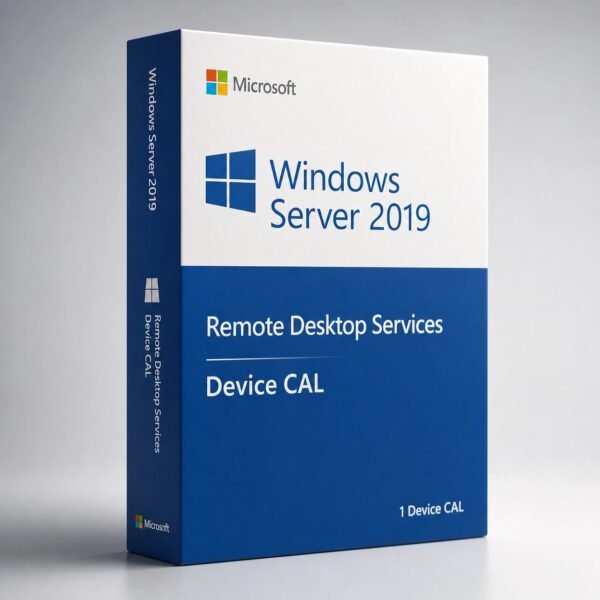
Needed device CALs for shared terminals at our service desk kiosks after moving to Server 2019. Straightforward purchase and install, confirmed working through the Remote Desktop Licensing Diagnoser with no errors reported.
Email arrived within ten minutes of checkout with the key and a short PDF guide. Installed it onto our license server in per-device mode for our classroom computer lab on Server 2019. Smooth process.
Needed to add device CALs after expanding our radiology reading stations to the new 2019 servers. These installed onto our existing license server inventory without any conflicts.
Our org got flagged during an internal compliance review for being short on RDS CALs after our 2019 server upgrade. Picked these up to cover our remaining terminals and the keys installed cleanly.
Our hotel uses shared front desk and concierge terminals so device CALs made the most sense for our setup. Got the quantity we needed for our 2019 environment, installed onto our existing license server without conflicts.