




Best Windows OS for Gaming in 2026: Windows 11 vs Windows 10

Choosing the best Windows OS for gaming used to be an easy call: you installed whatever version came with your PC and got on with it. In 2026 the decision matters more. Windows 10 has left mainstream support, Windows 11 has had five years of gaming-focused updates, and new titles increasingly assume features such as DirectStorage, Auto HDR and modern GPU drivers. This guide compares Windows 11 and Windows 10 for gaming using independently measured benchmarks, Microsoft's own documentation and real-world experience, so you can pick the right edition for your hardware and budget.
Quick answer: the best Windows OS for gaming in 2026
Windows 11 is the best Windows operating system for gaming in 2026. Independent testing by TechSpot in January 2026 (Windows 11 25H2 vs Windows 10 22H2, 14 games, RTX 5090 and Ryzen 7 9800X3D) found Windows 11 about 4% faster at 1080p and roughly 5% faster at 1440p and 4K on average, with a few titles such as Borderlands 4 and Arc Raiders running 9-15% faster. Windows 11 also receives the latest DirectX, driver and security updates, while Windows 10 reached end of support on October 14, 2025 and now only gets security patches through the optional Extended Security Updates (ESU) program.
Which edition? Windows 11 Home is all most gamers need. Windows 11 Pro does not add FPS, but it is the better choice if you also want BitLocker, Remote Desktop hosting, Hyper-V or Group Policy control over Windows Update.
- Which Windows OS is best for gaming?
- Windows 11 vs Windows 10: full comparison
- FPS and performance comparison
- Windows 11 Home vs Pro for gaming
- Is Windows 10 still good for gaming?
- Best Windows for low-end gaming PCs
- Best Windows for high-end gaming PCs
- Best Windows for competitive gaming
- Steam, Epic Games and Xbox PC gaming
- Windows 11 gaming features explained
- DirectStorage and NVMe SSD performance
- Auto HDR and visual quality
- Game Mode and background processes
- Compatibility and graphics drivers
- RAM, CPU, GPU and storage requirements
- Windows gaming optimization guide
- How to choose the right Windows edition
- Should gamers upgrade from Windows 10?
- Final recommendation
- Frequently asked questions
Which Windows OS is best for gaming?
When people search for the best operating system for gaming, they usually mean one of three things: the OS that delivers the most frames per second, the OS with the fewest compatibility headaches, or the OS that will still be supported and secure a few years from now. In 2026 Windows 11 wins on all three counts, but the margins are different for each, and that is where the details matter.
On raw performance the gap between Windows 10 and Windows 11 is small. Most of your frame rate still comes from your graphics card, CPU and the game's own engine. The operating system matters at the edges: how it schedules threads on hybrid CPUs, how fast it moves data from an NVMe SSD into video memory, and whether it supports the newest graphics driver features. Those edges have been moving in Windows 11's favor with every annual update.
On compatibility, Windows 10 and Windows 11 share the same driver model and the same DirectX 12 runtime, so almost every game that runs on one runs on the other. The exceptions are new features (DirectStorage GPU decompression at full speed, Auto HDR, Dynamic Lighting) that only exist on Windows 11, plus a growing number of games and anti-cheat systems that require TPM 2.0 and Secure Boot, which Windows 11 enforces by default.
On support, the picture is one-sided. Windows 10 reached end of support on October 14, 2025. Windows 11 is the only consumer Windows that still receives feature updates, and it is what Microsoft, NVIDIA, AMD and Intel are optimizing their drivers for.
The rest of this article walks through each of those areas, then matches the right Windows edition to low-end, high-end and competitive gaming PCs.
Windows 11 vs Windows 10: complete comparison
Here is a side-by-side look at the factors that affect gaming. "Independent testing" refers to published benchmarks from reviewers who ran both operating systems on the same hardware; "Microsoft" refers to claims from Microsoft's own documentation.
| Factor | Windows 11 | Windows 10 | Source |
|---|---|---|---|
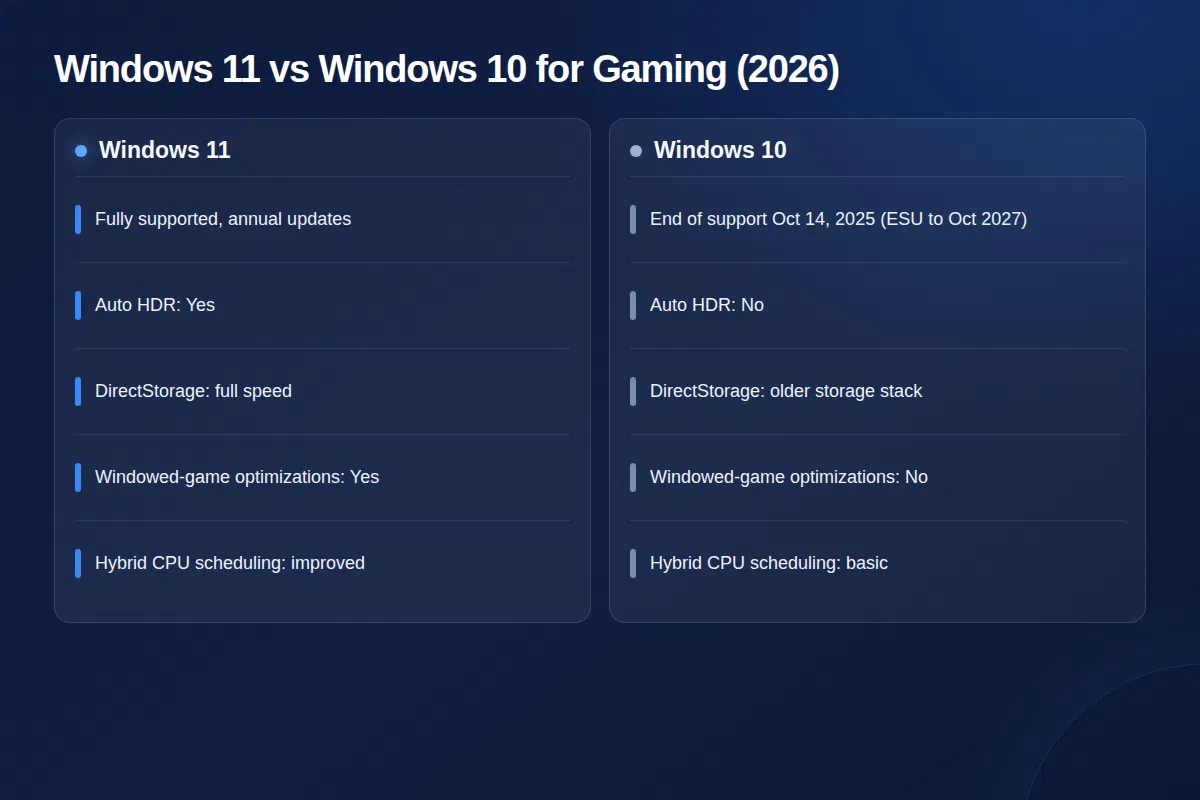
| Support status (2026) | Fully supported; annual feature updates (latest: 25H2) | End of support Oct 14, 2025; security-only via paid or free ESU enrollment | Microsoft lifecycle |
| Average gaming performance | About 4-5% faster on average (14-game test, Jan 2026) | Baseline | Independent testing (TechSpot) |
| DirectStorage | Full support with upgraded storage stack | Supported, but with the older storage stack (lower throughput) | Microsoft DirectX blog |
| Auto HDR | Yes (DirectX 11 and 12 games, HDR display required) | No | Microsoft |
| Optimizations for windowed games | Yes (lower latency for borderless/windowed DX10-11 games) | No | Microsoft |
| Hybrid CPU scheduling (Intel P/E-cores, AMD dual-CCD X3D) | Thread Director aware; improved scheduler | Works, but less aware of core types | Intel/AMD documentation |
| Game Mode and Xbox Game Bar | Yes | Yes | Microsoft |
| Hardware requirements | TPM 2.0, Secure Boot capable, 8th-gen Intel / Ryzen 2000 or newer, 4 GB RAM, 64 GB storage | 1 GHz CPU, 2 GB RAM, 32 GB storage | Microsoft |
| Anti-cheat compatibility | Best; several titles require TPM 2.0 and Secure Boot | Good, but some newer titles require TPM/Secure Boot to be enabled manually | Game publishers |
| Driver support | Primary target for NVIDIA, AMD and Intel game-ready drivers | Still supported in 2026 by major GPU vendors, but no longer the priority platform | GPU vendors |
| Stability | Occasional update regressions reported in 2025-2026 | Very mature; few changes now | Industry reporting |
Benchmark summary: TechSpot, "Windows 11 vs Windows 10 Gaming Performance," January 27, 2026. Lifecycle: Microsoft Learn, Windows 10 Home and Pro lifecycle page.
Gaming FPS and performance comparison
This is the number most people want, so let us be precise about what has actually been measured rather than what gets repeated on forums.
What independent testing shows
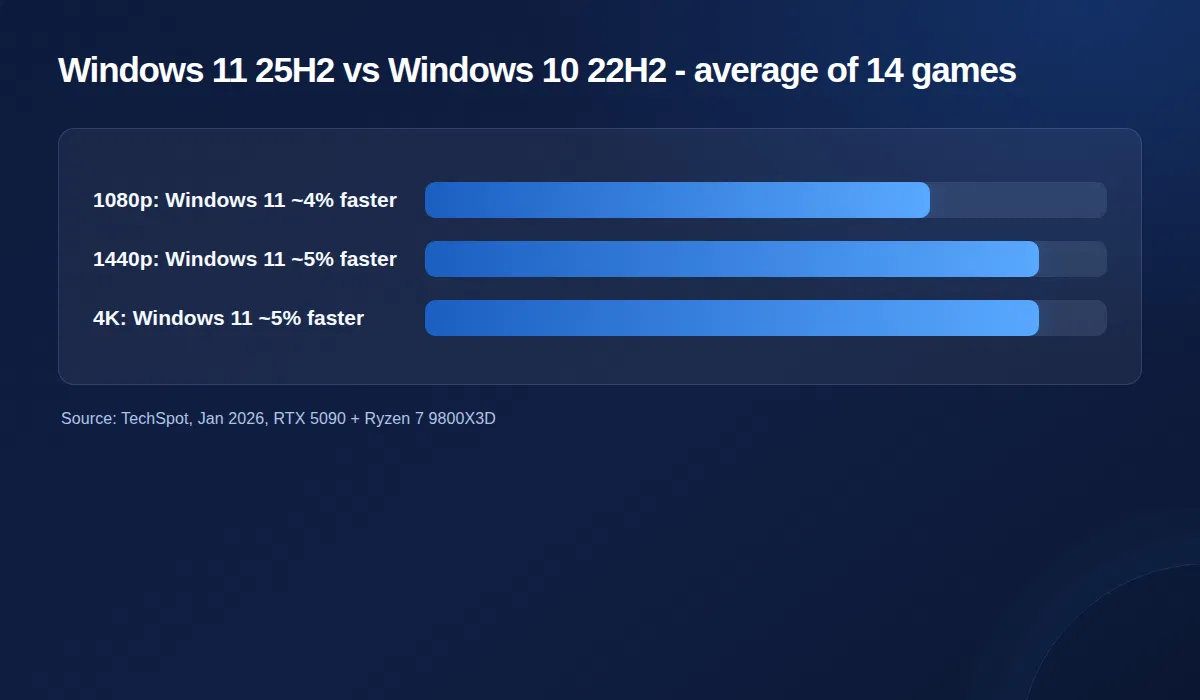
The most recent large-scale comparison we found was published by TechSpot on January 27, 2026. The reviewer installed Windows 11 25H2 and Windows 10 22H2 on separate SSDs in the same PC (Ryzen 7 9800X3D, GeForce RTX 5090, 32 GB DDR5-6000) and ran 14 games at 1080p, 1440p and 4K with antivirus and virtualization-based security disabled on both systems to isolate the OS itself.
| Resolution | Windows 11 25H2 vs Windows 10 22H2 (14-game average) |
|---|---|
| 1080p | Windows 11 about 4% faster |
| 1440p | Windows 11 about 5% faster |
| 4K | Windows 11 about 5% faster |
The averages hide a wide spread. Counter-Strike 2 was within 1%, effectively a tie. Borderlands 4 ran 9-13% faster on Windows 11, and Arc Raiders was 11% faster at 1080p, 14% at 1440p and 15% at 4K. Several titles showed no measurable difference at all. A bonus run with a Radeon RX 9070 XT and a Ryzen 7 9700X showed Windows 11 2-3% ahead in one test and tied in the other, which suggests the benefit depends on the game engine and the GPU driver as much as on the OS.
Why Windows 11 is slightly faster
- Scheduler improvements. Windows 11 understands hybrid CPUs (Intel's performance and efficiency cores, AMD's dual-CCD X3D parts) better than Windows 10, so game threads land on the right cores more often.
- Storage stack. Windows 11 carries the updated storage stack that DirectStorage was designed around. Games that stream assets heavily see the biggest gains.
- Driver focus. NVIDIA, AMD and Intel develop and validate their game-ready drivers on Windows 11 first. Optimizations for new titles may reach Windows 11 earlier or only.
- Newer runtimes. DirectX 12 Ultimate features such as Sampler Feedback and Mesh Shaders are available on both, but Windows 11 receives the newest Agility SDK and graphics-runtime updates first.
What this means for you
A 4-5% average is real but not transformational. If you are at 120 fps on Windows 10 you might see 125 fps on Windows 11. The practical reasons to choose Windows 11 are the outlier games that gain 10-15%, the newer features that Windows 10 cannot use, and the fact that Windows 10 is no longer receiving the optimizations at all.
Windows 11 Home vs Windows 11 Pro for gaming
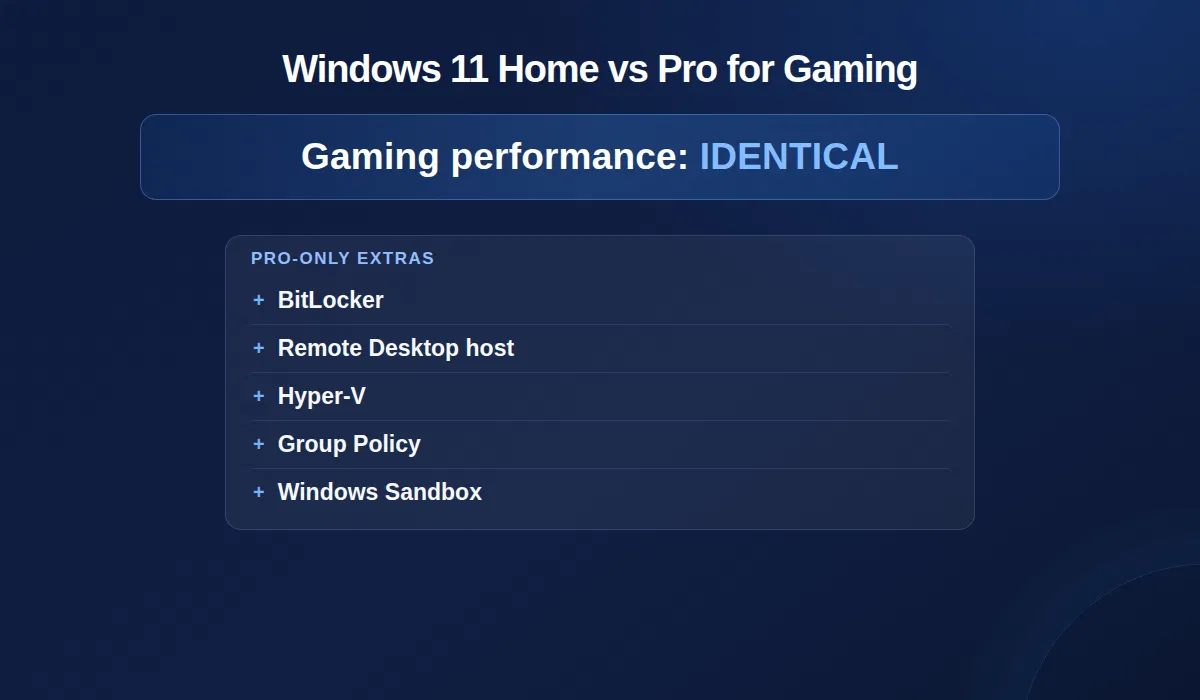
This is the question we hear most often from customers, so here is the direct answer: Windows 11 Home and Windows 11 Pro deliver the same gaming performance. They share the same kernel, the same scheduler, the same DirectX runtime, the same graphics drivers and the same Game Mode. Under equivalent settings and hardware, frame rates are identical. Anyone claiming that Pro "unlocks" FPS is wrong.
What Pro adds is management and security features that some gamers find useful for reasons other than frame rate.
| Feature | Windows 11 Home | Windows 11 Pro | Why a gamer might care |
|---|---|---|---|
| Gaming performance (FPS) | Same | Same | No difference |
| Auto HDR, DirectStorage, Game Mode | Yes | Yes | No difference |
| Maximum RAM | 128 GB | 2 TB | Only matters above 128 GB, which no gaming PC needs |
| Maximum CPU sockets | 1 | 2 | Irrelevant for consumer boards |
| BitLocker drive encryption | Device encryption only (limited) | Full BitLocker | Protects a laptop with your game library and saved logins |
| Remote Desktop (host) | No | Yes | Access your gaming PC from another room or while traveling |
| Hyper-V virtualization | No | Yes | Run a second OS for modding tools or testing |
| Group Policy Editor | No | Yes | Pause or schedule Windows updates so they never interrupt a session |
| Windows Sandbox | No | Yes | Try mods or tools from unknown sources safely |
| Local account during setup | Microsoft account required | Easier to use a local account | Privacy preference |
Our recommendation: buy Windows 11 Home if your PC is purely a gaming machine. Choose Windows 11 Pro if you stream, work from the same PC, want Remote Desktop, or simply want finer control over updates. If you already run Home, the Windows 11 Home to Pro upgrade switches editions without reinstalling.
Is Windows 10 still good for gaming?
Yes, Windows 10 still runs almost every PC game in 2026, and on the same hardware it is only a few percent behind Windows 11. The problem is not performance today; it is support and security tomorrow.
What end of support means
Microsoft ended support for Windows 10 Home, Pro, Enterprise and Education on October 14, 2025. After that date Microsoft no longer ships feature updates, non-security fixes or free security patches for version 22H2. Your PC does not stop working, and Steam, Epic and most games keep running, but any new vulnerability stays unpatched unless you are enrolled in ESU. For a machine that is online all day, logged into Steam, Discord and a payment-linked Microsoft account, that is a meaningful risk.
Extended Security Updates (ESU) for Windows 10
Microsoft offers a consumer ESU program that continues delivering security-only updates for Windows 10 version 22H2. Originally announced as a one-year bridge to October 13, 2026, Microsoft quietly extended the consumer program in June 2026 so that it now runs through October 12, 2027. Enrollment appears in Settings > Windows Update on eligible PCs. You can enroll by:
- Turning on Windows Backup to sync your PC settings to a Microsoft account (no extra cost),
- Redeeming 1,000 Microsoft Rewards points, or
- Paying a one-time fee of US$30 plus tax for one year, which can cover up to 10 devices on the same Microsoft account.
All three options require an administrator Microsoft account and the latest Windows 10 22H2 updates. ESU covers security fixes only; there are no new gaming features, no driver optimizations and no technical support.
When staying on Windows 10 makes sense
- Your CPU or motherboard does not meet Windows 11 requirements (no TPM 2.0, CPU older than Intel 8th-gen or Ryzen 2000) and you are not ready to upgrade hardware.
- You rely on an older game, peripheral or capture device whose driver was never updated for Windows 11.
- You want maximum stability and are prepared to enroll in ESU and keep a modern browser and antivirus up to date.
If you do stay, use a legitimate licence. A genuine Windows 10 Pro or Windows 10 Home key keeps activation and ESU enrollment working; "free" keys from random sites frequently fail after a few weeks.
Best Windows OS for low-end gaming PCs
By "low-end" we mean something like a dual- or quad-core CPU, 8 GB of RAM, integrated graphics or an entry-level GPU, and possibly a SATA SSD or hard drive. On this class of hardware the operating system choice is mostly decided by compatibility.
If the PC meets Windows 11 requirements
Install Windows 11 Home. The minimum requirements (dual-core 1 GHz 64-bit CPU on the supported list, 4 GB RAM, 64 GB storage, TPM 2.0, UEFI with Secure Boot) are modest, and Windows 11 has no higher real-world gaming overhead than Windows 10. On a tight system the gains from Windows 11's scheduler are small, but you also gain years of security updates for free. Turn off visual effects (Settings > Accessibility > Visual effects > Animation effects off), disable startup apps you do not use, and keep Game Mode on.
If the PC does not meet Windows 11 requirements
Windows 10 is the best Windows OS for low-end gaming PCs that cannot officially run Windows 11. It is lighter on very old CPUs, supports legacy BIOS boot, and runs on 2 GB of RAM in a pinch. Enroll in ESU so you keep receiving security patches, and consider Windows 10 Home rather than Pro to save money. Unofficial Windows 11 installs on unsupported hardware are possible but Microsoft does not guarantee updates for them, so we do not recommend that route for a daily gaming machine.
Best Windows OS for high-end gaming PCs
If you own or are building a high-end system (a Ryzen 7 9800X3D or Core Ultra 9 class CPU, RTX 5080/5090 or RX 9070 XT, PCIe 4.0 or 5.0 NVMe storage, 32 GB or more of DDR5, an HDR monitor), Windows 11 is the only sensible choice.
- Hybrid CPU scheduling. Intel's Thread Director and AMD's dual-CCD X3D designs are properly understood by Windows 11's scheduler. On Windows 10, games can land on the wrong cores and lose performance; this is one reason some of TechSpot's biggest Windows 11 wins came on the 9800X3D platform.
- DirectStorage at full speed. A fast NVMe drive only reaches its potential with Windows 11's storage stack and GPU decompression.
- Auto HDR. Your HDR monitor can add HDR to hundreds of SDR-only games with no developer work.
- Latest drivers. New GPU launches and game-ready drivers are validated on Windows 11 first.
Edition: Windows 11 Home is fine for pure gaming; Windows 11 Pro is the usual pick for enthusiasts who also stream, run virtual machines or want Remote Desktop. Windows 11 Pro for Workstations exists for multi-socket and persistent-memory systems and offers no gaming benefit over Pro.
Best Windows OS for competitive gaming
Competitive players care about three things: consistent frame times, low input latency, and anti-cheat compatibility. Windows 11 is the best Windows OS for competitive gaming on all three.
- Frame-time consistency. The scheduler improvements that help average FPS help 1% lows even more on modern CPUs, which is what you feel as "smoothness."
- Input latency. Windows 11's "Optimizations for windowed games" switches DirectX 10 and 11 titles running in borderless or windowed mode to a flip presentation model, reducing latency without forcing exclusive fullscreen. This feature is not in Windows 10.
- Anti-cheat. Riot Vanguard (Valorant, League of Legends) requires TPM 2.0 and Secure Boot on Windows 11 systems, and Call of Duty and Battlefield 6 require Secure Boot. These checks pass automatically on a standard Windows 11 install, whereas Windows 10 users often need to enable them in the BIOS.
Tuning tips for esports titles: keep Game Mode on, turn off Memory Integrity in Windows Security > Device security > Core isolation if you measure a frame-time penalty (be aware this lowers protection), enable Hardware-accelerated GPU scheduling, and use your GPU vendor's low-latency mode (NVIDIA Reflex or AMD Anti-Lag 2) where the game supports it.
Best Windows OS for Steam, Epic Games and Xbox PC gaming
Every major PC storefront runs on both Windows 10 and Windows 11, but the trend is clear. In Valve's June 2026 Steam Hardware Survey, Windows 11 accounted for about 70% of Steam users, with Windows 10 continuing to decline month over month. Developers test on what their players use.
| Platform | Windows 11 | Windows 10 | Notes |
|---|---|---|---|
| Steam | Fully supported | Supported | Steam Overlay, Proton-free native Windows builds; Windows 11 is now the majority platform. |
| Epic Games Store | Fully supported | Supported | Easy Anti-Cheat titles increasingly check TPM/Secure Boot. |
| Xbox app and PC Game Pass | Best experience | Supported | Microsoft builds the Xbox app, Game Bar and Game Pass features for Windows 11 first. |
| GOG, Battle.net, EA app, Ubisoft Connect | Supported | Supported | No meaningful difference today. |
For PC Game Pass subscribers specifically, Windows 11 is the better home: the Xbox app, cloud saves, Game Bar widgets and controller features are developed on Windows 11, and Microsoft's own first-party releases (for example Forza and Flight Simulator) are the titles most likely to use DirectStorage and Auto HDR.
Windows 11 gaming features explained
Microsoft markets several gaming features for Windows 11. Here is what each one actually does, what it requires, and whether Windows 10 has an equivalent.
| Feature | What it does | Requirements | Windows 10? |
|---|---|---|---|
| Auto HDR | Automatically adds HDR tone mapping to SDR games built on DirectX 11 or 12 | HDR-capable display, HDR enabled in Settings | No |
| DirectStorage | Lets games load assets from NVMe SSDs to the GPU with less CPU overhead; GPU decompression | NVMe SSD, DirectX 12 GPU with Shader Model 6.0; game must implement it | Partial (older storage stack) |
| Game Mode | Prioritizes the game process; pauses Windows Update installs and driver installs during play | None; on by default | Yes |
| Optimizations for windowed games | Flip-model presentation for DX10/11 windowed and borderless games; lower latency, Auto HDR support | None | No |
| Hardware-accelerated GPU scheduling | Moves scheduling work from the CPU to the GPU | Supported GPU (GTX 10-series/RX 5000 or newer) and driver | Yes (2004 and later) |
| Xbox Game Bar | Overlay for capture, performance monitoring, audio, friends | None; Win + G | Yes |
| Dynamic Lighting | Native control of RGB peripherals without vendor software | HID LampArray-compatible devices | No |
| DirectX 12 Ultimate | Ray tracing, Mesh Shaders, Variable Rate Shading, Sampler Feedback | Supported GPU | Yes |
Source: Microsoft, "Gaming on Windows 11". Microsoft states that hardware requirements vary by game and that features such as Auto HDR need a compatible display.
DirectStorage and NVMe SSD performance
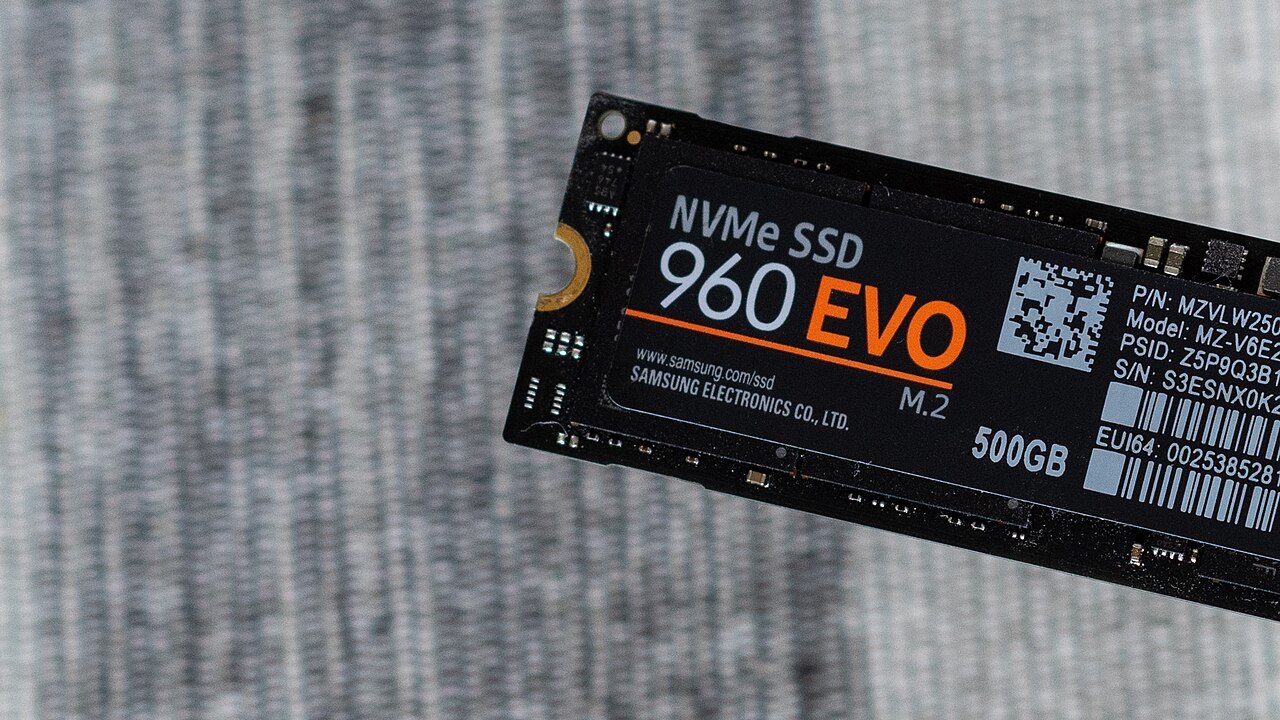
DirectStorage is Microsoft's API for moving game assets from storage to the GPU with far less CPU work than traditional file I/O. In a conventional pipeline, compressed assets are read from disk, decompressed by the CPU, then copied to the GPU. With DirectStorage 1.1 and later, compressed data can be streamed directly and decompressed on the GPU, which is dramatically faster at the kind of parallel work decompression involves.
Windows 10 vs Windows 11
Microsoft originally announced DirectStorage as a Windows 11 exclusive, then confirmed it would work on Windows 10 version 1909 and later. The catch is that Windows 11 includes an upgraded storage stack that the API was designed around; on Windows 10 the older stack delivers lower throughput. Microsoft's guidance is that games benefit on both, but "will benefit most on Windows 11."
Requirements
- An NVMe SSD using the standard Microsoft NVM Express controller driver (SATA SSDs and hard drives still work with DirectStorage games but miss the speedup).
- A DirectX 12 GPU with Shader Model 6.0 support (any GeForce GTX 10-series, Radeon RX 5000 or Intel Arc card or newer).
- A game that actually uses DirectStorage. As of 2026 the list is still short but growing (Forspoken, Ratchet & Clank: Rift Apart, Marvel's Spider-Man 2, Horizon Forbidden West, Diablo IV and others).
Practical advice: install Windows and your most-played games on an NVMe drive. Even without DirectStorage, NVMe cuts loading screens and reduces texture pop-in in open-world games.
Auto HDR and gaming visual quality
Auto HDR is a Windows 11 feature borrowed from the Xbox Series X|S. When you play a DirectX 11 or DirectX 12 game that was built for standard dynamic range, Windows analyzes the frame and expands highlights and colour range to use your HDR display's extra brightness. Native HDR games are untouched. The result is not identical to a properly authored HDR implementation, but it noticeably improves hundreds of older titles with zero effort from the developer.
To use it you need an HDR monitor or TV (ideally DisplayHDR 600 or better, or an OLED), HDR turned on in Settings > System > Display, and Auto HDR enabled in Settings > System > Display > Graphics (or per game via the Xbox Game Bar). Windows 11 also includes an HDR Calibration app from the Microsoft Store that sets black and peak-brightness levels for your display; run it once for accurate results.
Windows 10 supports native HDR games but has no Auto HDR. If you own an HDR display, this is one of the stronger visual reasons to move to Windows 11.
Windows Game Mode and background processes
Game Mode exists in both Windows 10 and Windows 11 and is on by default. It tells Windows to prioritize the active game, prevents Windows Update from installing drivers and restart notifications mid-session, and limits some background activity. In our experience it rarely raises average FPS on a healthy PC, but it reduces the chance of a stutter when something starts in the background, so leave it on.
The larger wins come from what you remove from the background:
- Open Task Manager (Ctrl + Shift + Esc) > Startup apps and disable launchers you do not use daily.
- Turn off hardware-monitoring overlays and RGB software you are not using; several are known to cause frame-time spikes.
- Keep only one real-time antivirus active. Windows Security is sufficient for most gamers.
- Set Settings > System > Power > Power mode to Best performance on desktops.
- Check Settings > Apps > Installed apps and remove bloatware that came with a prebuilt PC.
Gaming compatibility and graphics drivers
Driver support is where Windows 11 has quietly pulled ahead. NVIDIA, AMD and Intel still publish Windows 10 drivers in 2026, but Windows 11 is the platform where new GPU launches, new game-ready optimizations and features such as DLSS 4 Multi Frame Generation and FSR 4 are validated first. GPU vendors have also started signaling that Windows 10 will eventually move to a legacy support branch, as happened with Windows 7 and 8.1.
Game compatibility
Windows 10 and Windows 11 share the same Win32 and DirectX foundations, so game compatibility is nearly identical. The differences are:
- A small number of 2025-2026 titles list Windows 11 as the minimum or recommended OS, largely because of DirectStorage and anti-cheat requirements.
- Some very old games (2000s-era DirectX 8/9 titles with DRM such as SecuROM or SafeDisc) have problems on both modern versions and are best run through community patches or compatibility layers.
- Peripheral software (older webcams, capture cards, printers) is occasionally Windows 10-only; check the vendor before upgrading.
Keep drivers current
Install the GPU driver from NVIDIA, AMD or Intel directly rather than relying on Windows Update, which tends to ship older certified versions. Use the vendor app (NVIDIA app, AMD Software, Intel Graphics Software) to update, and consider a clean install when switching GPU brands.
RAM, CPU, GPU and storage requirements
Here are the official minimums for each OS alongside what we consider a sensible gaming baseline in 2026.
| Component | Windows 10 minimum | Windows 11 minimum | Comfortable gaming baseline (2026) |
|---|---|---|---|
| CPU | 1 GHz, 1 core | 1 GHz, 2 cores, 64-bit, on Microsoft's supported list (Intel 8th gen / AMD Ryzen 2000 or newer) | 6-8 cores, e.g. Ryzen 5 7600 or Core i5-13400 and up |
| RAM | 2 GB (64-bit) | 4 GB | 16 GB; 32 GB for high-end and streaming |
| Storage | 32 GB | 64 GB | 1 TB NVMe SSD |
| GPU | DirectX 9 with WDDM 1.0 | DirectX 12 with WDDM 2.0 | RTX 4060 / RX 7600 class for 1080p; RTX 5070 / RX 9070 class for 1440p |
| Firmware and security | Legacy BIOS or UEFI | UEFI, Secure Boot capable, TPM 2.0 | Same as Windows 11 minimum |
| Display | 800 x 600 | 720p, 9 inches or larger | 1080p 144 Hz or 1440p 165 Hz; HDR for Auto HDR |
Minimum specifications: Microsoft Windows 11 specifications page and Windows 10 system requirements. The "comfortable baseline" column is our recommendation, not a Microsoft requirement.
To check whether your PC is eligible for Windows 11, run Microsoft's PC Health Check app or open Settings > Windows Update, where eligible Windows 10 PCs are offered the upgrade. TPM 2.0 is present on almost every CPU released since 2018 (as Intel PTT or AMD fTPM) but is sometimes disabled in the BIOS by default.
Windows gaming optimization guide
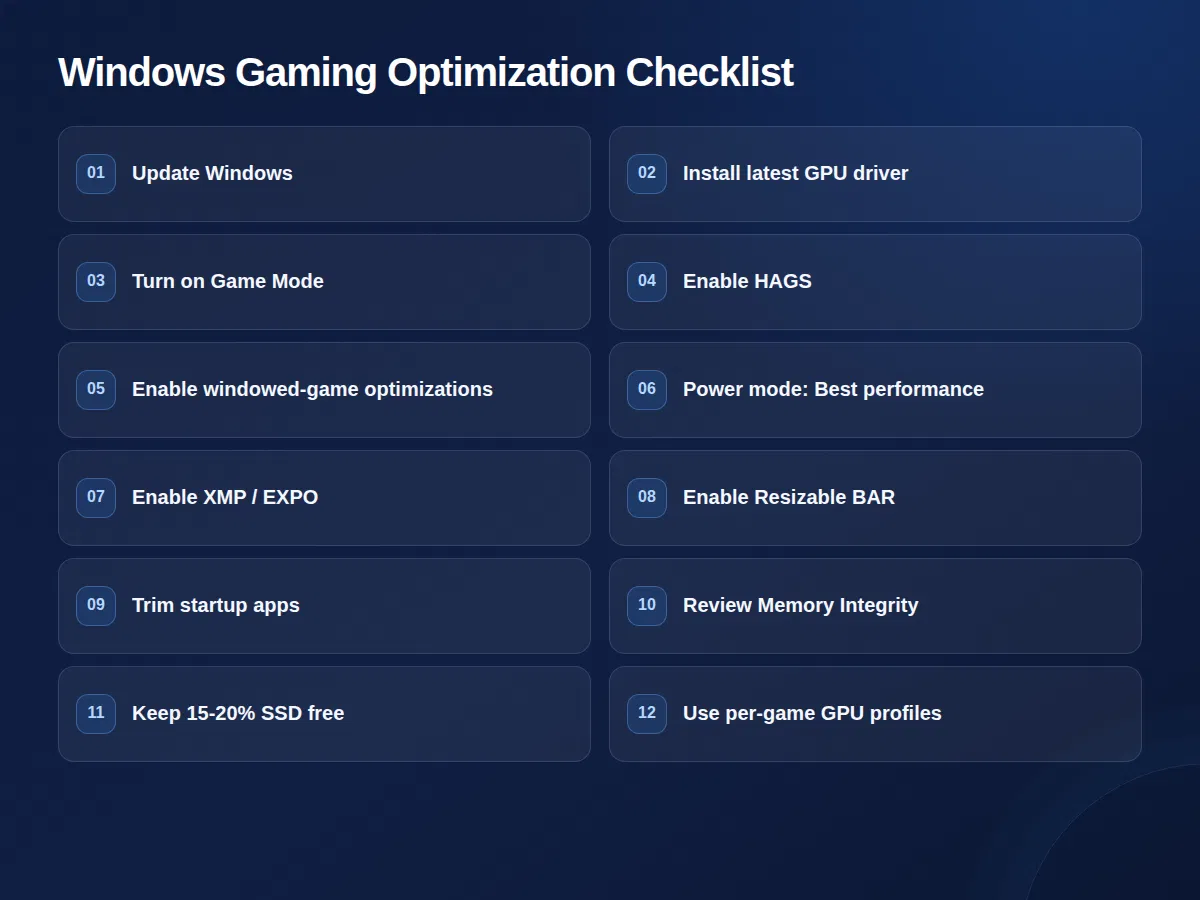
Whichever version you run, these steps deliver the most consistent improvement. Work through them in order; each takes a minute or two.
- Update Windows. Settings > Windows Update > Check for updates. On Windows 11, also open Advanced options > Optional updates for driver packages.
- Install the latest GPU driver from NVIDIA, AMD or Intel directly.
- Turn on Game Mode. Settings > Gaming > Game Mode.
- Enable Hardware-accelerated GPU scheduling. Settings > System > Display > Graphics > Change default graphics settings.
- Enable Optimizations for windowed games (Windows 11) on the same screen.
- Set Power mode to Best performance. Settings > System > Power.
- Enable XMP/EXPO in the BIOS so your RAM runs at its rated speed; this is one of the most overlooked free FPS gains.
- Enable Resizable BAR / Smart Access Memory in the BIOS (requires Secure Boot/UEFI mode), which Windows 11 handles well.
- Trim startup apps in Task Manager > Startup apps.
- Decide on Memory Integrity. Windows Security > Device security > Core isolation. Leaving it on is safer; turning it off can recover a few percent of performance on some systems.
- Keep 15-20% free space on your game drive so the SSD can maintain write speeds.
- Use per-game settings in the GPU control panel for low-latency mode, V-Sync and frame caps rather than global settings.
How to choose the right Windows edition
Use this quick decision guide:
| Your situation | Best choice |
|---|---|
| New gaming PC or recent hardware; pure gaming | Windows 11 Home |
| Gaming plus work, streaming, VMs or Remote Desktop | Windows 11 Pro |
| Already on Windows 11 Home and want Pro features | Windows 11 Home to Pro upgrade |
| PC cannot run Windows 11 (no TPM 2.0 / unsupported CPU) | Windows 10 Pro or Windows 10 Home, enrolled in ESU |
| Multi-socket workstation or more than 2 TB RAM | Windows 11 Pro for Workstations (no gaming benefit over Pro) |
| Business fleet with volume management | Windows 11 Enterprise |
Whatever you choose, make sure the licence is genuine. Retail digital licences from an authorized reseller activate on Microsoft's servers, survive hardware changes within reason, and can be reinstalled on the same PC indefinitely. Our Windows 10 licence key guide explains the difference between Retail, OEM and Volume keys if you want more detail.
Should gamers upgrade from Windows 10 to Windows 11?
For most gamers, yes, and the sooner the better. The reasons, in order of importance:
- Security. Windows 10 no longer receives free security updates. ESU is a stopgap that ends in October 2027.
- Future game requirements. More releases will list Windows 11 as the minimum, especially those using DirectStorage or kernel-level anti-cheat.
- Performance. A measured 4-5% average advantage today, with larger gains in specific titles and on hybrid CPUs.
- Features. Auto HDR, windowed-game optimizations, Dynamic Lighting and the best version of the Xbox app.
How to upgrade
If your Windows 10 PC is eligible, Settings > Windows Update will offer the free in-place upgrade; your Windows 10 digital licence carries over to the same edition of Windows 11 (Home to Home, Pro to Pro). If you prefer a clean install, download the Windows 11 Installation Media tool from Microsoft, create a USB drive, and follow our step-by-step Windows 11 Pro installation guide. Back up your game saves first; cloud saves on Steam and the Xbox app cover most titles, but not all.
When to wait
Wait if a device or program you depend on has no Windows 11 driver, or if you have had a bad experience with a recent Windows 11 update on your specific hardware. Microsoft's 2025-2026 updates have produced some well-publicized regressions, and a mature Windows 10 install with ESU is a legitimate short-term choice. Just set a date to move before ESU ends.
Ready to upgrade your gaming PC?
MMKeys supplies genuine Microsoft licences for the USA and Canada with instant email delivery, so you can activate your new install in minutes.
Windows 11 Home Windows 11 Pro Home to Pro upgradeFinal recommendation
The best Windows OS for gaming in 2026 is Windows 11. It is measurably if modestly faster than Windows 10 on current hardware, it is the only version that supports Auto HDR, full-speed DirectStorage and windowed-game optimizations, it passes modern anti-cheat requirements out of the box, and it is the only consumer Windows still receiving feature and driver updates. Windows 10 remains a capable gaming OS for PCs that cannot upgrade, provided you enroll in Extended Security Updates and plan to move before October 2027.
Between editions, Windows 11 Home gives you every gaming feature at the lowest price; Windows 11 Pro adds BitLocker, Remote Desktop, Hyper-V and update control without changing frame rates. Pick the one that matches how you use your PC, install it on an NVMe drive, keep your GPU drivers current, and you will have the best Windows gaming setup available today.
Frequently asked questions
Is Windows 11 better than Windows 10 for gaming?
Yes, by a small margin. Independent testing in January 2026 found Windows 11 25H2 about 4% faster at 1080p and about 5% faster at 1440p and 4K than Windows 10 22H2 across 14 games on an RTX 5090 system. Windows 11 also supports Auto HDR, full-speed DirectStorage and windowed-game optimizations, which Windows 10 lacks.
Does Windows 11 Pro give more FPS than Windows 11 Home?
No. Home and Pro share the same kernel, scheduler, DirectX runtime and drivers, so gaming performance is identical. Pro adds BitLocker, Remote Desktop hosting, Hyper-V, Group Policy and support for more RAM and CPU sockets, none of which affect frame rates.
Can I still game on Windows 10 in 2026?
Yes. Windows 10 runs nearly every PC game and is only a few percent slower than Windows 11. However, it reached end of support on October 14, 2025, so you should enroll in Microsoft's Extended Security Updates program (free with Windows Backup or Rewards points, or US$30 per year) to keep receiving security patches until October 12, 2027.
What is the best Windows OS for a low-end gaming PC?
If the PC meets Windows 11 requirements (TPM 2.0, supported CPU, 4 GB RAM), use Windows 11 Home; it has no extra gaming overhead and stays supported. If it does not qualify, Windows 10 Home with ESU is the best option. In both cases an SSD and 16 GB of RAM will help more than the OS choice.
Does DirectStorage work on Windows 10?
Yes, DirectStorage supports Windows 10 version 1909 and later, but Windows 11 includes an upgraded storage stack that lets it run at full speed. Microsoft says games benefit on both systems but benefit most on Windows 11. You also need an NVMe SSD and a DirectX 12 GPU with Shader Model 6.0.
Does Game Mode actually improve FPS?
Usually not by much on a clean system. Game Mode prioritizes your game and stops Windows Update from installing drivers or prompting restarts during play, which helps prevent stutters. Leave it on; the bigger wins come from updating GPU drivers, enabling XMP/EXPO and trimming startup apps.
Should I turn off Memory Integrity (VBS) for gaming?
Tom's Hardware measured a roughly 4-6% gaming penalty from VBS and Memory Integrity on 2021 hardware. Modern CPUs show less impact. Turning it off recovers a little performance but lowers protection against kernel-level malware. If you play competitive titles with kernel anti-cheat, leave it on; otherwise it is a personal trade-off.
Do I need TPM 2.0 and Secure Boot for gaming?
Windows 11 requires both to install. Independently, several popular games now require them for anti-cheat: Riot Vanguard (Valorant, League of Legends) requires TPM 2.0 and Secure Boot on Windows 11, and recent Call of Duty and Battlefield releases require Secure Boot. Almost every CPU since 2018 includes a firmware TPM; it may just need enabling in the BIOS.
Will my Windows 10 licence work on Windows 11?
Yes. A genuine Windows 10 Home or Pro digital licence upgrades free to the same edition of Windows 11 on the same PC through Windows Update. If you are building a new PC or want a different edition, you need a new licence such as Windows 11 Home or Windows 11 Pro.
Is Windows 11 Pro for Workstations better for gaming?
No. Pro for Workstations adds support for multiple CPU sockets, persistent memory and the ReFS file system for server-class hardware. It offers no gaming advantage over Windows 11 Pro and costs more.
Is Windows 10 LTSC a good gaming OS?
Windows 10 IoT Enterprise LTSC 2021 is a long-term servicing edition supported until 2032 and is popular with some enthusiasts for its minimal preinstalled apps. It games as well as regular Windows 10 but lacks the Microsoft Store by default (the Xbox app and Game Pass need extra steps) and it will never receive Windows 11 features. It is a niche choice, not our general recommendation.
How much RAM do I need for gaming on Windows 11?
Windows 11 needs 4 GB to install, but 16 GB is the realistic minimum for modern games and 32 GB is comfortable for high-end gaming, streaming or heavily modded titles. Both Home and Pro support far more than any gaming PC uses.
Sources and further reading
- TechSpot: Windows 11 vs Windows 10 gaming performance (January 2026)
- Microsoft Learn: Windows 10 Home and Pro lifecycle
- Microsoft: Windows 10 Extended Security Updates for consumers
- Microsoft: Gaming on Windows 11 (Auto HDR, DirectStorage, Game Mode)
- Microsoft: Windows 11 specifications and system requirements
- Microsoft DirectX Developer Blog: DirectStorage 1.1 and GPU decompression
- Tom's Hardware: Windows 11 VBS/HVCI gaming benchmarks
- Valve: Steam Hardware & Software Survey
Related guides on MMKeys: How to install Windows 11 Pro and Windows 10 licence key: find, check and buy.